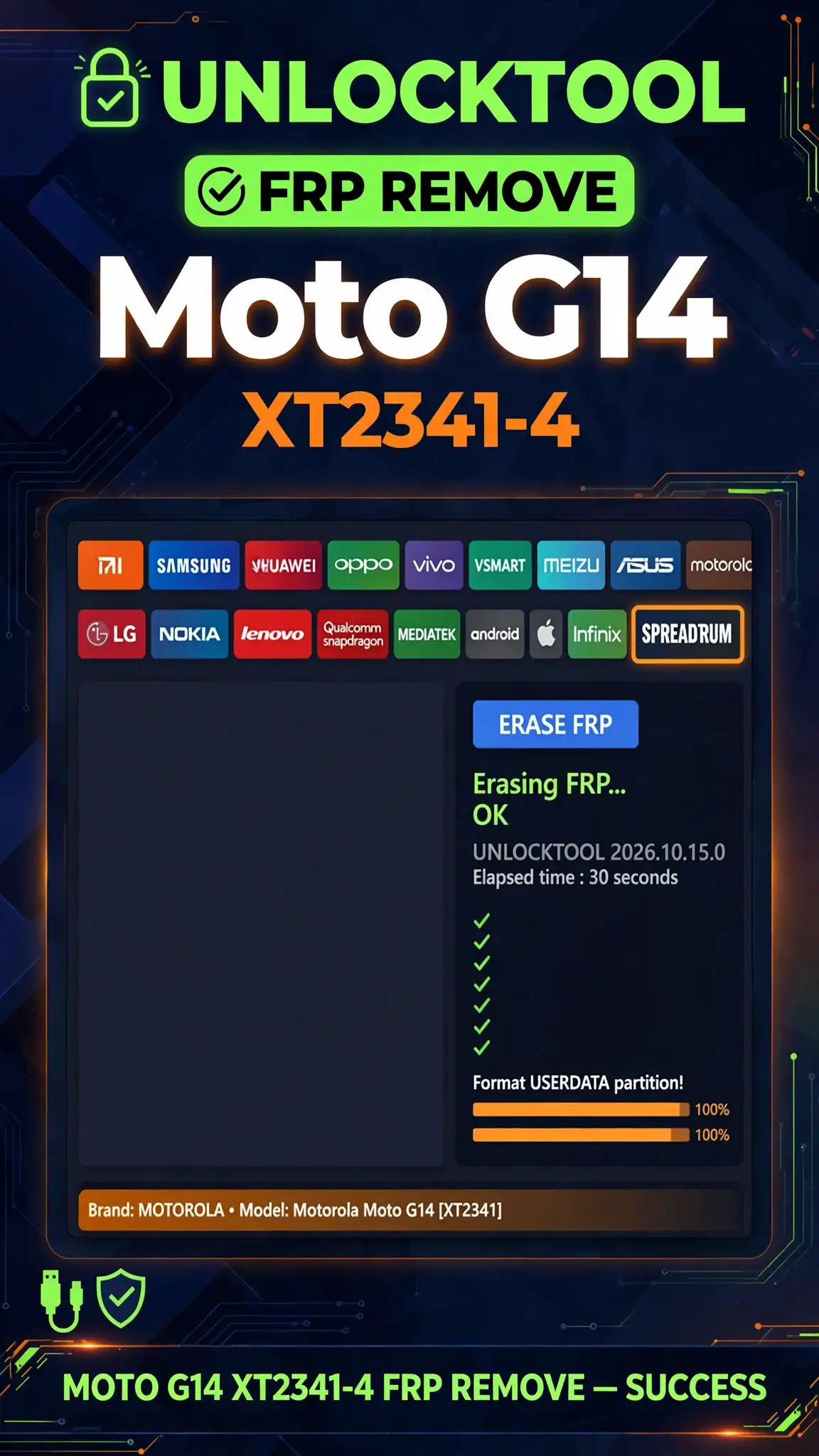
Unlock Tool-MOTO G-14 XT2341-4 FRP Remove
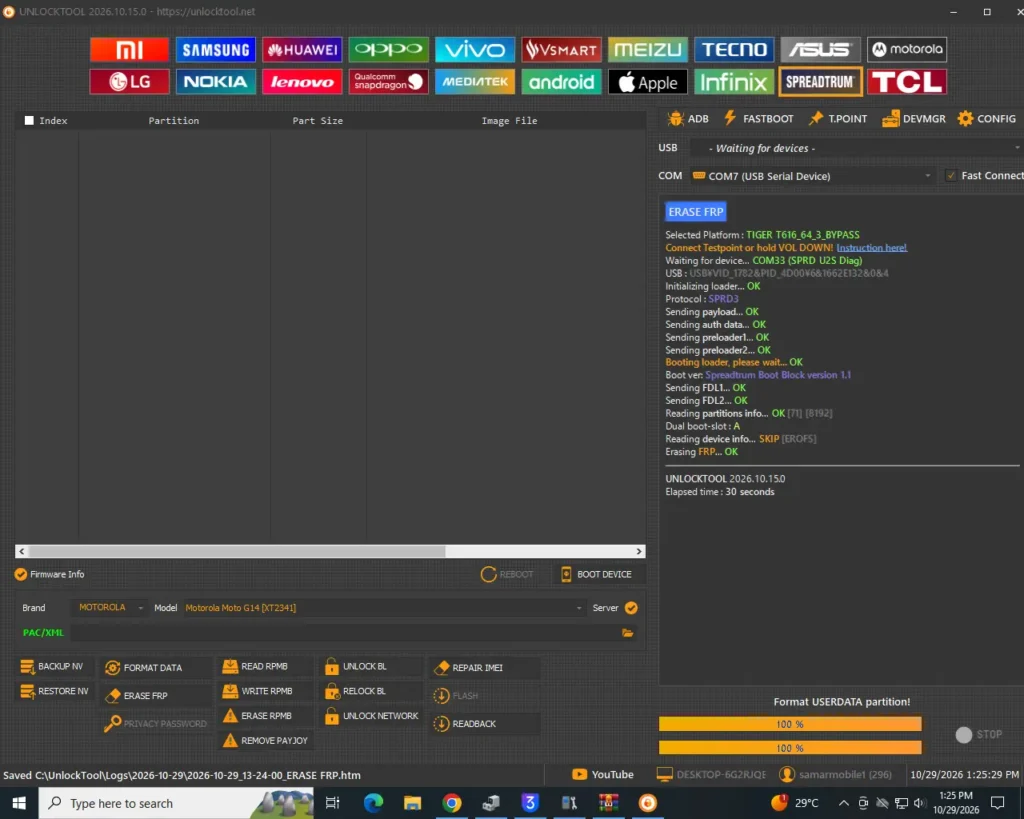
Here’s a quick way to MOTO G-14 XT2341-4 FRP Remove using Unlock Tool. Install the SPD Diag USB Driver, go to the Spreadtrum tab and click Erase FRP, then connect your phone with a USB cable.
What Is FRP Lock on the Moto G14?
FRP stands for Factory Reset Protection. It’s Google’s security lock that shows up on the Motorola Moto G14 (XT2341-4) after a factory reset. When the phone restarts, it asks for the Google account that was synced on it before. If you still remember that account, you can just sign in and move on, no problem. The trouble starts when you’ve forgotten the account details, or the phone got reset without removing the account first. Then it stays stuck on the Google account verification screen, and you can’t get to the home screen even though nothing’s actually wrong with the phone. This is called the Google lock, or G-Lock. It’s not a hardware fault, and it doesn’t mean the phone is damaged. It’s a software-level lock, which is why a tool like Unlock Tool can remove it. This guide uses the Spreadtrum tab in Unlock Tool, since the Moto G14 runs on the Spreadtrum (Unisoc) platform.
What You Need Before You Start
Before you start the Moto G14 FRP removal, get a few things ready first. You’ll need Unlock Tool installed on a Windows PC, with an active license. Unlock Tool runs on licenses, and you can activate it for 3 months, 6 months, or up to a year through any official Unlock Tool reseller. Second, install the SPD Diag USB Driver on your PC before plugging in the phone. This matters because without the right driver, Windows can’t properly detect the Spreadtrum device, and the tool won’t see your phone at all. Third, use a good USB cable, the original one if you can, so the connection stays stable the whole way through. Also make sure the phone has enough battery so it doesn’t shut off partway through. And just a note, this method is meant for your own phone, or one you’re authorized to work on.
How to Remove FRP on Moto G14 XT2341-4 with Unlock Tool
The process is short and simple. First, install the SPD Diag USB Driver on your PC, before you open the tool, so it’s ready by the time the phone connects. Next, open Unlock Tool and go to the Spreadtrum tab. Click Erase FRP. Then connect the Moto G14 (XT2341-4) to your PC with a USB cable. Once it’s connected, Unlock Tool will process the device and remove the FRP lock. Don’t disconnect the cable while it’s working, just wait for it to finish. That’s the whole method, no test point, no extra files, nothing complicated needed for this model. Once it’s done, the Google account verification lock on the Moto G14 is gone, and you can set the phone up again.
After the FRP Lock Is Removed
Once the FRP lock is gone, the Moto G14 goes back to the initial setup screen. You can now set it up like a new device and sign in with your own Google account. Just go through the normal setup, language, Wi-Fi, account sign-in, and the phone’s ready to use again. This time, make sure to remember the new Google account details and keep them saved somewhere safe. One useful tip: if you ever plan to reset this phone again, or hand it off to someone else, remove your Google account from Settings first, then reset it. If you reset the phone while an account is still signed in, the FRP lock will show up again next time, and you’ll have to go through this whole process again.
If Unlock Tool Does Not Detect the Phone
Sometimes the phone doesn’t get detected on the first try, and in most cases it comes down to the driver or the cable. Start by reinstalling the SPD Diag USB Driver on your PC, then restart Unlock Tool. Make sure the driver’s installed before you plug in the phone, doing it afterward doesn’t always fix the detection issue. Next, try a different USB port on your PC, and if you can, try a different cable too. A loose or damaged cable is one of the most common reasons connections fail. Also skip USB hubs for this, plug the cable directly into the PC. If the phone still isn’t showing up, close Unlock Tool, reopen it, and repeat the same steps: Spreadtrum tab, Erase FRP, then connect the phone.
Advertisement
Is Unlock Tool free for Moto G14 FRP remove?
No. Unlock Tool runs on licenses, you’ll need an active activation, available in 3-month, 6-month, or up-to-one-year options, through an official Unlock Tool reseller.
Do I need the SPD Diag USB Driver for this method?
Yes. Install the SPD Diag USB Driver on your PC first. Without it, Windows can’t detect the Spreadtrum device, and Unlock Tool won’t find the Moto G14.
Will this process delete my data?
The FRP lock only shows up after a factory reset, so by the time you see the Google verification screen, the phone’s already been reset. This method just removes the Google lock, it doesn’t cause any extra data loss.
Does this method work on Windows 10 and Windows 11?
Yes. Unlock Tool is Windows PC software, so this method is done on a PC. There’s no APK version of this method.
Advertisement
Can I use this method on someone else’s phone?
Only use this on a phone you own, or one you’re authorized to work on.