What Is the SM-A215U Test Point?
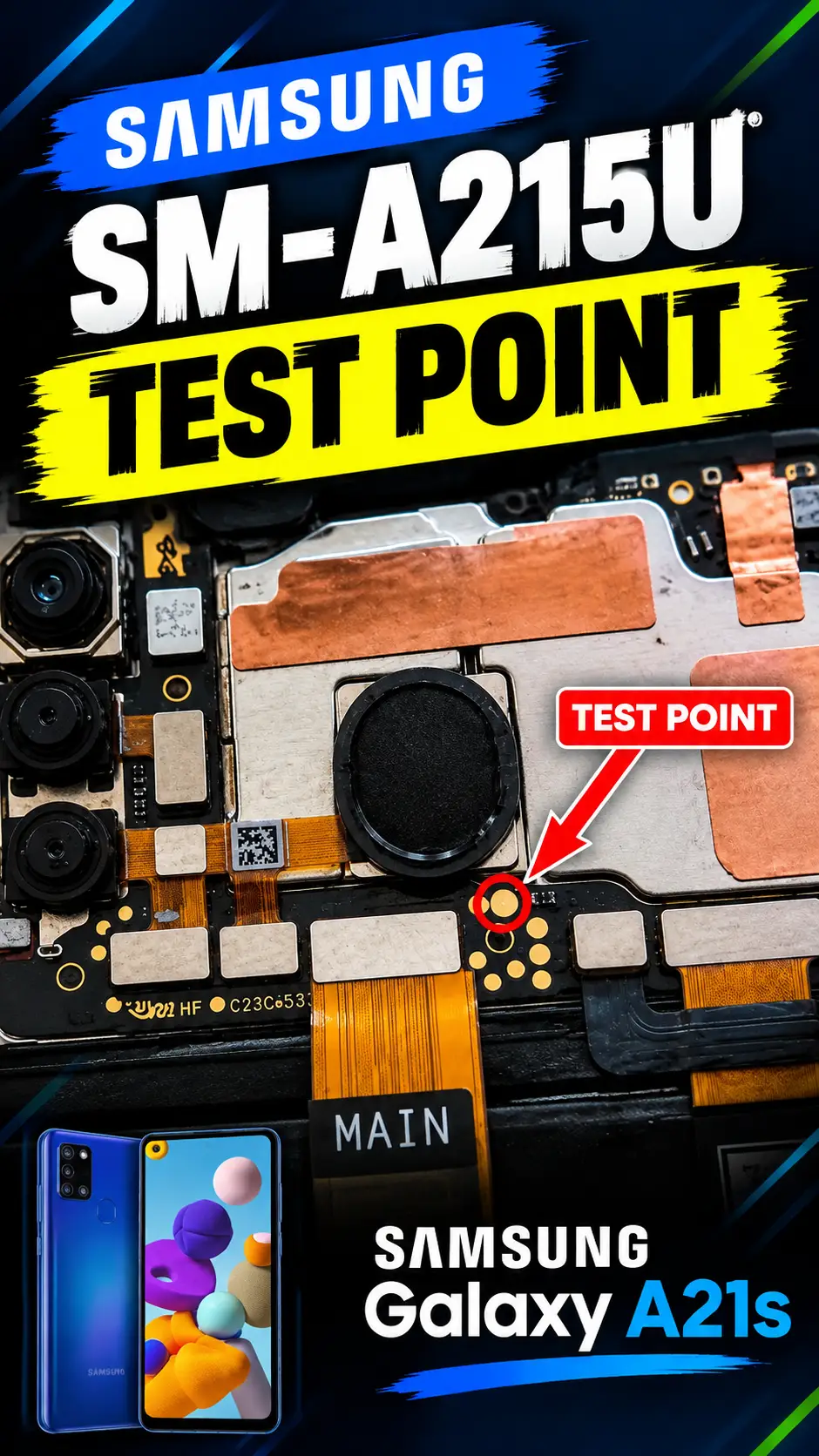
The Samsung Galaxy A21, model SM-A215U, has a small test point on its mainboard. Shorting this point to ground while connecting the phone to a computer makes the phone boot into BROM mode instead of normal boot, also called Preloader mode. In this mode, a repair tool can talk to the phone at a low level, whether the phone won’t turn on, is stuck on the Google account verification screen, or just isn’t getting detected in normal mode.
The test point isn’t a software setting, and it doesn’t turn on through any phone menu. It’s a physical contact point on the board, so using it means opening up the phone. Because of that, this method is strictly for repair work, not a quick at-home fix for someone without tools and experience.
On the SM-A215U, the test point is mainly used for two things: removing the FRP lock, and bringing a dead or stuck phone back into a mode where it can be flashed or repaired. The test point itself doesn’t remove anything, it just puts the phone into the right mode. What happens after that depends on which operation you select in the tool.
Identify Your Phone First
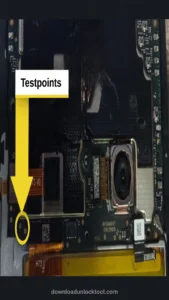
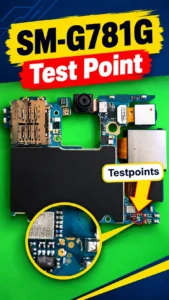
Before opening anything up, confirm that your phone really is the SM-A215U. If the phone still turns on, check the model in Settings, otherwise look at the sticker under the back cover or on the original box. Don’t assume every Galaxy A21 variant has the same test point. The SM-A215U, SM-A215U1, and SM-S215DL are close to each other, but still, match the board in your hands against the photo in this post before shorting anything. If the board layout looks different from the photo, stop. Shorting the point on the wrong board can short out the wrong circuit.
Before opening the phone, also check whether Unlock Tool supports this model, and for which operation. Open the tool and see if SM-A215U is on the list, and whether it supports your phone’s security patch level. A test point can’t fix a model or patch that the tool doesn’t support in the first place.
What the Test Point Does — and What It Does Not Do
When the SM-A215U is in BROM mode, Windows detects it as a MediaTek USB Port, not as a normal Samsung phone, and not as a Qualcomm QDLoader device either. If you see QDLoader 9008 instead, that means it’s a different phone or a different mode, stop and double-check the model.
BROM mode only lasts for a short while. That’s normal for MediaTek phones. So the tool should be ready beforehand, with the operation already selected, before you connect the phone. If you connect the phone first and then go looking for the button, the port will disappear and you’ll have to redo the test point step.
The test point itself doesn’t delete data, doesn’t remove a screen lock, and doesn’t fix any hardware fault. Erasing FRP, formatting data, and flashing, these are three separate operations. Only pick the one you actually need. If you just need to remove FRP, don’t choose full format, or your data will get wiped.
What You Need Before You Start
- A Windows PC with Unlock Tool installed and an active license. Downloading the setup file for free isn’t the same as having a license.
- The MediaTek Preloader USB VCOM driver installed on the PC. Without it, Windows will show an unknown device and the tool won’t see the phone.
- A good USB cable, preferably the original one. A charge-only cable won’t work in BROM mode.
- Fine tweezers or thin copper wire for shorting the test point. Don’t use a thick screwdriver.
- Tools for opening the phone, and a clean spot to keep the screws.
- Enough battery charge, or a separately charged battery you can test with. Don’t start a write operation on a phone that might shut off midway.
This guide is only for your own phone, or a phone you’re authorized to work on. Don’t use this on a lost or stolen phone.
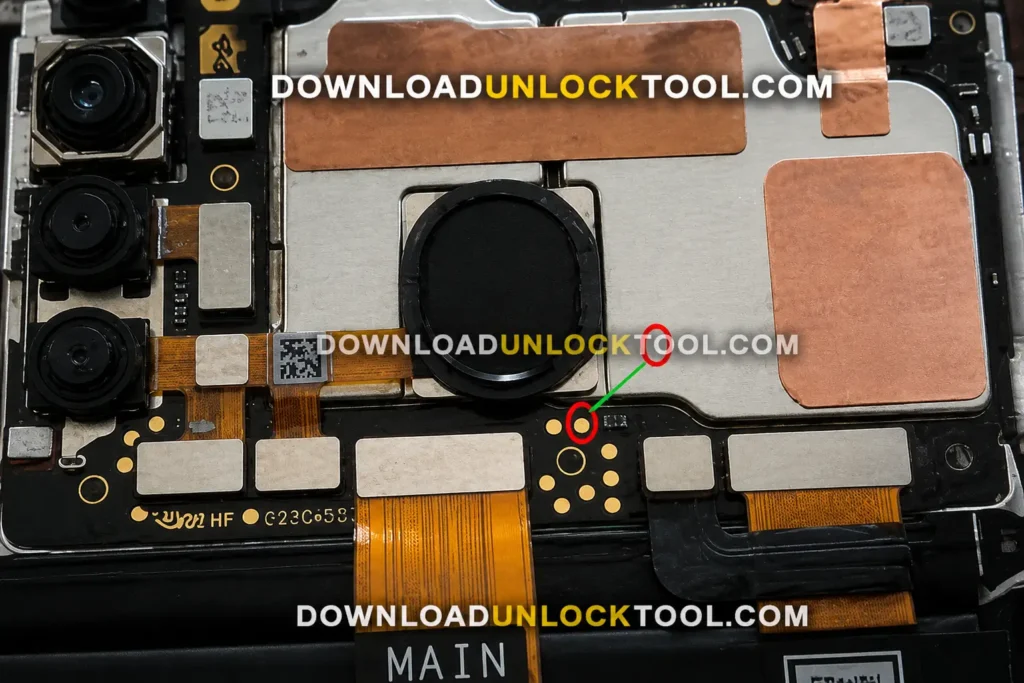
Test Point Location on the Board
In the photo above, the red circle on the board is the test point, and the red circle on the shield is ground.
Step-by-Step: Boot the SM-A215U into BROM Mode
- Turn your phone off. If it is stuck, wait for it to fully power off.
- Gently remove the back cover. Unplug the battery flex cable from the board. This will ensure you do not cause any damage and have a clean BROM entry. Take note of where the screws go so you can easily put your phone back together.
- Open up Unlock Tool on your PC. Select SM-A215U if it is in the list. Only select the operation you want to do (Erase FRP). If your tool asks you to plug your phone in, follow the prompts.
- Ensure your driver is working. There should be no yellow warning on the MediaTek driver in device manager. If there is, fix the driver. The most common issue with this method is that the driver is not installed.
- With the tweezers, short the test point to ground. Whilst shorting, plug in your USB cable. Once Windows has detected your phone as a MediaTek USB Port, un-short the test point. Do not short whilst the port is detected.
- Allow your tool to detect your phone in BROM mode and complete the operation. Do not unplug your cable, touch the board or close your tool. Wait for your tool to clearly show you have succeeded or failed.
Advertisement
- Once your operation has been completed, unplug your USB cable. Reconnect the battery flex cable, put the back cover back on and power on your phone. Complete setup and ensure that you no longer have the FRP screen and are at the home screen.
If you receive a failure, do not try 5 times straight. Take note of the error message you are receiving. Look at the troubleshooting section below to fix the issue. Fix only that issue and try again.
What You Should See When It Works
In Device Manager, the phone should briefly show up as a MediaTek USB Port, along with a COM port number. In Unlock Tool’s log, the phone should get detected in BROM or Preloader mode, and the chip should show as MT6765. If the log shows a different chip, stop. That means either the wrong model is selected, or the wrong phone is connected.
Once the FRP operation succeeds, the phone will restart and won’t ask for the old Google account again. If it still asks for the same account, that means the operation didn’t actually complete, even if the phone turned on. Don’t take the phone turning on as success by itself, check the tool’s log again.
Troubleshooting
Phone Is Not Detected at All
Check the cable first, then the driver. A charge-only cable is the most common cause. After that, check whether the battery flex is disconnected, and whether the short was being held at the exact moment the phone was connected. If the short is applied late, BROM mode won’t trigger.
MediaTek USB Port Appears and Then Disappears
This timing is normal in BROM mode. The tool should already be set up before you connect the phone. Get the operation ready first, then do the test point step. Don’t connect first and go looking for the button afterward.
Tool Shows a Download Agent or Authentication Error
This usually means the tool needs a different Download Agent file for this model, or that this model and security patch combination isn’t supported for this operation. Don’t try a Download Agent file meant for a different model. First check the Unlock Tool support list for SM-A215U.
Phone Only Charges and Shows Nothing on the PC
This means the phone didn’t go into BROM mode. Either the test point wasn’t shorted properly, or the wrong point got touched, or the driver’s missing. Check in this order: first the photo, then the driver, then the cable.
Phone Was Detected but the Operation Failed Halfway
Don’t panic and disconnect the cable. Note the exact error, if the tool allows it, close out the operation safely, and check the battery, cable, and driver before trying again. A clean failure early on is far less dangerous than an incomplete write.
Warnings to Read Before Opening the Phone
Opening the phone can void the warranty, and if it’s opened roughly, the screen, back cover, or flex cables can get damaged. Work in a clean, static-safe space. Keep metal tools away from any parts that shouldn’t be shorted. Flashing the wrong file, or choosing the wrong operation, can brick the phone. Before hitting start, confirm all three, model, chipset, and operation. If the phone still allows it, back up any important data first, since some operations delete data and it doesn’t come back.
Is the SM-A215U Test Point the Same as an ISP Pinout?
No. The test point puts the phone into BROM mode by shorting it to ground. ISP pinout is a different hardware method where the memory chip is read or written directly, and that needs different connections and equipment. Don’t mix the two methods together.
Advertisement
Does Using the Test Point Erase My Data?
The test point itself doesn’t delete data. Whether data gets deleted depends on which operation you pick afterward. Erase FRP and Format Data are separate operations. If you choose Format Data, your data will get wiped. Read the operation’s name in the tool carefully before you start.
Can I Do This Without Opening the Phone?
No. The test point is on the board inside the phone. No menu option or key combination can replace it when the phone needs to be put into BROM mode this way.
Will This Work on Every SM-A215U, No Matter the Security Patch?
No. Tool support depends on the model and the security patch level. Before opening the phone, check the Unlock Tool support list for SM-A215U and your patch level. If your patch isn’t supported, the test point step alone won’t do the job.
Is the SM-A215U Test Point the Same as the SM-A215F Test Point?
Don’t assume these are the same thing. Variants might share the same chipset, but the board layout can be different. Match the board in your hands against the photo in this post. If they don’t match, don’t use this photo for that variant.