What Is the Huawei USB 1.0 Kirin Flash Device Driver
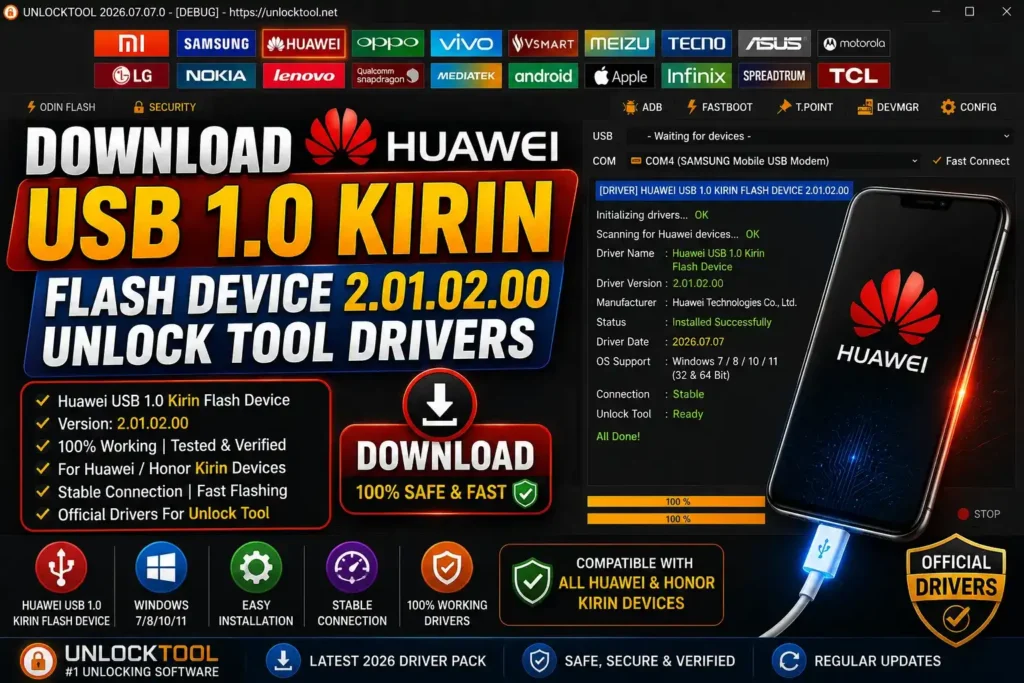
The Huawei USB 1.0 Kirin Flash Device driver is what connects Huawei phones with a Kirin chip to the PC. When the phone goes into COM 1.0 mode, usually through the test point or in a dead boot situation, Windows doesn’t recognize it. This driver, version 2.01.02.00, is what makes that recognition work. Put simply, without the Huawei USB COM 1.0 driver, your PC won’t be able to see a Kirin phone in flash mode at all, and Unlock Tool won’t be able to do anything.
What Is COM 1.0 Mode
COM 1.0 mode is the deepest flash mode on Huawei phones. When a phone is dead boot or won’t turn on the normal way, it’s brought into this mode through the test point. In this mode the phone shows nothing on the screen, and the PC just picks it up as a COM port. This is the repair mode: it’s where the firmware gets flashed and a dead phone comes back to life. But in this mode the phone will only work if the Huawei USB COM 1.0 driver is installed.
Download Huawei USB COM 1.0 Drivers (Free)
The Huawei USB COM 1.0 drivers download link is at the top of this post. The file is in zip format and is completely free to download. It’s the latest version, 2.01.02.00, so you won’t run into the problems that come with old drivers. Download it, extract it, and install it using the steps in the next section. No password, no survey.
Package Details
Here are the package details: driver version 2.01.02.00, which is the latest so far. Windows 10 and Windows 11 are both supported, and it installs on 64-bit as well as 32-bit systems. The file is a zip, and the size is small, so the download will finish right away.
How to Install on Windows
Once you get the zip out, right-click the auto installer and run it as administrator. This is a one-click install, so everything will be installed automatically no selection needed. It takes about 2-3 minutes. After the PC restarts, if you’ve installed the HUAWEI USB COM 1.0 driver successfully and plug in the phone in COM 1.0 mode, you should see the “HUAWEI USB COM 1.0” entry in Device Manager. This means the install was successful.
Fix “Other Devices” in Device Manager
When you connect the phone in COM 1.0 mode, it shows up in device manager as an unknown device under “Other devices” and this is what makes many people panic. Don’t be one of them. Right click on it and choose “Update driver”. Then choose “Browse my computer” and browse the extracted driver folder. Windows will find the right driver and install it automatically and the device will leave “Other devices” and become “Ports” as “HUAWEI USB COM 1.0”. This is how you can see that it is fixed.
Digital Signature Fix on 64-bit Windows
If this driver isn’t installing on Windows 64-bit versions, it’s normally the signature to blame. Unsigned drivers are blocked by Windows and this is effectively requiring a driver to be digitally signed before it can be installed. To get around this, you need to reboot into advanced startup, select ‘Disable driver signature enforcement’, then run the installer. You only need this during install. After the driver has been installed everything should be functioning as expected and there is nothing more to do.
Advertisement
Use with Unlock Tool
After the driver is installed, open the Unlock tool and select the Huawei tab. Put the phone into COM 1.0 mode by testing the point, connect the cable, and the tool will recognize immediately. With the tool you can repair a dead phone and flash firmware in this mode. If the tool gives the “USB SER” error, you didn’t install the driver properly. The straight fix is to uninstall and then reinstall the driver with administrator privileges and then look in Device Manager if there is COM 1.0. Once the driver is installed properly, the error is resolved automatically.
FAQ:
How to download Huawei drivers?
The download link is at the top of this post. The file is a ZIP and is completely free.
How do I install the Huawei USB COM 1.0 driver?
Extract the zip, run the auto-installer as administrator, then restart the PC. That’s it.
What is COM 1.0 mode on Huawei phones?
This is the deepest flash mode. The phone goes into it through the test point, and it’s where dead phone repair and firmware flashing happen.
Why does my Huawei show as “Other devices” in Device Manager?
That means the driver didn’t install. Right-click the unknown device, update the driver, and point it to the extracted folder. The device will move into “Ports.”
Is there software available to unlock Huawei phones?
Yes, Unlock Tool supports Huawei phones. The driver is free, but you need an activation to run the tool.