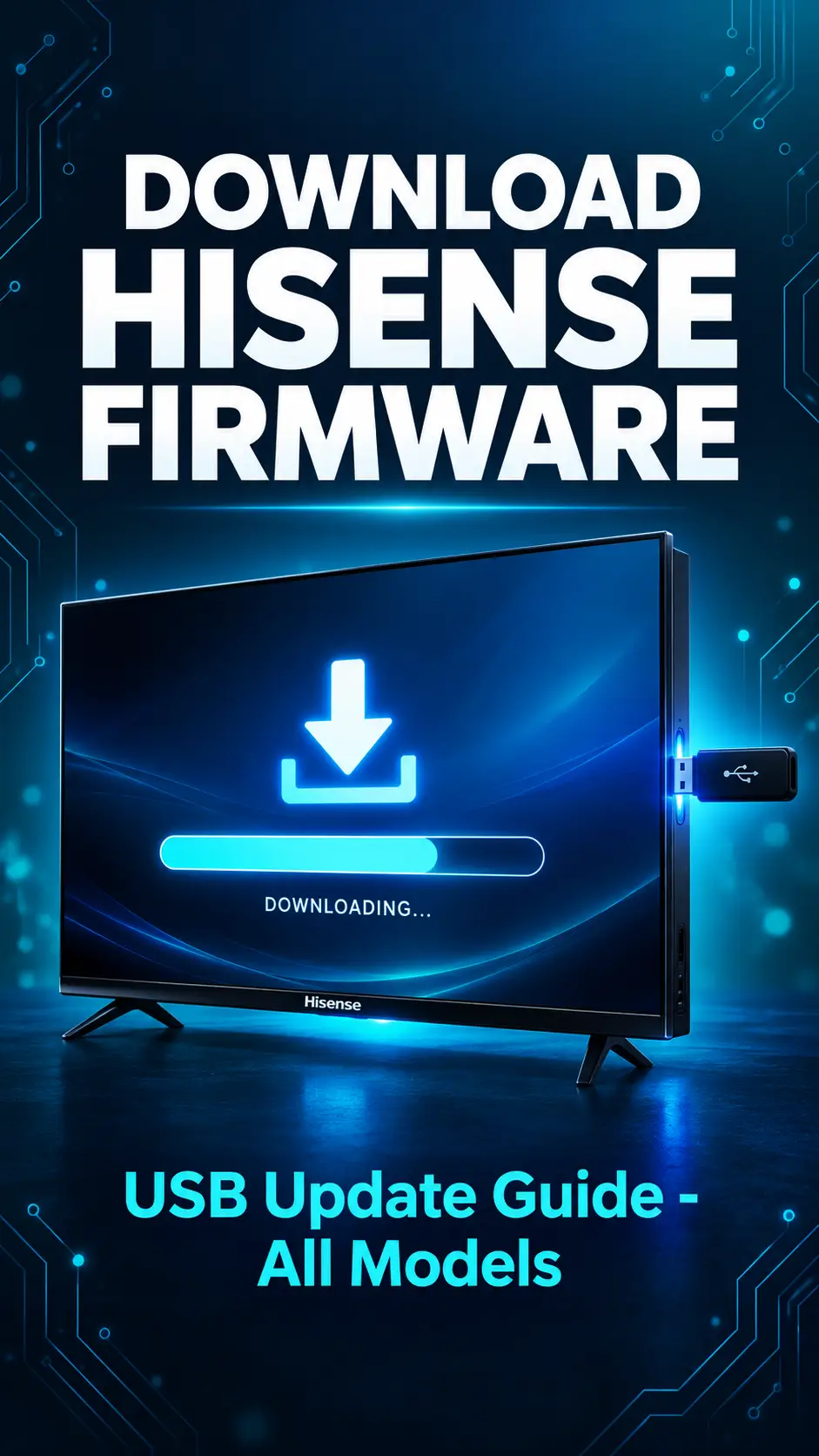
Download Hisense Firmware
You may come across software issues with your Hisense TV. This can be as simple as the TV getting stuck on the logo screen, apps not being able to be opened or an update getting interrupted meaning that your TV won’t work. The best thing to do is use the firmware for your specific TV. In this post I will show you a list of 60 Hisense TV models that have firmware to download. Each model has specific information about it, so just find your TV model and go straight to that section. It is very important to get the right model number to avoid any more issues with your TV, by using a firmware that isn’t correct for your model.
What Is Hisense TV Firmware
The Firmware is the software on the chip of your television. It provides all the on-screen menus, Wi-Fi, Applications, Responsiveness of your remote control and audio. If it gets corrupted or doesn’t install properly you may have some odd issues with your TV. To reinstall the firmware it is called flashing or doing a software update. This is done via a USB stick and usually takes between 10-15 minutes.
Before You Download
- There are a few things that you should do before you begin.
How To Check Your Hisense Model Number
To start with you will need to have an 8Gb USB stick. Format the stick to FAT32. Extract the contents of your downloaded ZIP file and place the file(s) in the root of your USB. It is best if there are no other files on your USB. Once this is done you can plug the USB into your TV.
How To Prepare The USB Drive
To start with you will need to have an 8Gb USB stick. Format the stick to FAT32. Extract the contents of your downloaded ZIP file and place the file(s) in the root of your USB. It is best if there are no other files on your USB. Once this is done you can plug the USB into your TV.
How To Install Hisense Firmware Using USB
Turn your TV off and unplug the plug. Plug the USB into the USB port on your TV. On some models it will automatically start updating. If not go into the settings and find the ‘Software Update’ option under the support menu. Select USB. Your TV may go black a few times and the LED may blink, this is completely normal. Don’t unplug the plug or remove the USB. Once your TV has rebooted the update will be complete.
Hisense 100 Inch TV Firmware
Hisense 100Q60QAVS Firmware Download
The Hisense 100Q60QAVS is a 100inch screen. Diagnosing any software issues can be very hard to do with a large TV like this. If your TV is getting stuck on the Hisense logo or apps are closing as soon as they open then the main fix will be to re-install the firmware for the 100Q60QAVS. This file is specific to only this model so make sure to check the model number on your TVs sticker. As it is not easy to take a large TV to a service centre this is a great way to update your TV. Just extract the file, place it in the root of your USB and plug it into your TV.
Hisense 32 Inch TV Firmware
Hisense 32A35MEEAS Firmware Download
The 32A35MEEAS is a popular 32″ model which is often used in smaller rooms or bedrooms. A common problem with this model is that when turning the TV on, it can take a long time for the home screen to load, or it can become unresponsive to the remote. Updating the software on the 32A35MEEAS usually will sort this issue. Reinstalling the original firmware below will put your TV back to factory settings. It may also take a little longer to boot up the first time, but this is nothing to worry about, just leave it for around 5 minutes.
Hisense 32E5100EE Firmware Download
If your 32E5100EE is rebooting randomly then it is most likely an issue with the software. The flash file can be useful if you turn on your TV and there is no complete menu or channel list for your 32E5100EE. First try to reset to factory settings. If this does not fix the issue download the firmware from this page and install it via USB. Make sure you name the file correctly as the TV will not take the file if it is named incorrectly.
Hisense 32E5600EA Firmware Download
The 32E5600EA has the ‘EA’ at the end of the model number. This means it is slightly different to other models in this series, so it is important you choose the correct file. Common problems reported by TV owners after updating are that they cannot connect to Wi-Fi or the App Store will not close. Re-flashing the firmware can help with these small issues. Before you try to update your TV make sure you have turned your internet router off or unplugged your LAN cable so that you do not get any automatic updates whilst you are trying to update.
Hisense 32E5600EE Firmware Download
The 32E5600EE is a reliable television, but sometimes it can have software issues. This can cause problems with the image (e.g. colours appearing backwards or faded) and/or out of sync sound. The best solution is to download and install the 32E5600EE firmware. You might think that you should take it to a technician, but it’s also a good idea to check the firmware package contains a ‘Readme’ file.
Hisense 32E5603EXT Firmware Download
Do not confuse the ‘EXT’ variant with the ‘EX’ model (e.g., 32E5606EX); the 32E5603EXT requires a different firmware. If you have installed the wrong file and the TV will no longer turn on, do not panic—simply re-flash it using the correct 32E5603EXT file. In most cases, the TV will be restored this way. It is normal for the LED indicator to blink during the update process. Please allow at least 10 minutes for the procedure to complete, and do not attempt to turn off the TV while it is in progress.
Hisense 32E5606EE Firmware Download
The firmware for the 32E5606EE can be helpful if your TV gets stuck on the logo (also known as a boot loop). When this happens the remote will not work and it appears that your TV is broken. Often it is just a problem with the software. Place the stock firmware for the 32E5606EE onto a USB stick and power on the TV. Many times it will automatically detect the update. If not, you can attempt to manually update via the Support menu.
Hisense 32E5606EX Firmware Download
The last letter in the model name is what separates the 32E5606EX from the EE version. The files cannot be swapped between the two. First check the back of your television to see if it is EX or EE. If it is EX then the file below will be correct for you. Common issues with this model are apps crashing, YouTube not working and Wi-Fi continually disconnecting. The first thing to do is update the software on your 32E5606EX. It would also be a good idea to factory reset your TV.
Hisense 40 Inch TV Firmware
Hisense 40A35EEVS Firmware Download
This is a mid sized TV, commonly found in living rooms. With more use of the smart features there will be more issues with apps and network. If your TV is not picking up any Wi-Fi or apps are crashing after logging in, try re-flashing the firmware on your 40A35EEVS. This is an easy and free fix. All you need is an empty USB and a bit of patience. Once the update is done your TV will automatically reboot.
Hisense 40E5100EE Firmware Download
Common issues with this model are the TV powering on but there is no image on the screen. There will be sound but if you shine a torch on the screen there may be a very dim image, this indicates the backlight or panel is the issue. If there is no image at all and just a black screen with sound then try flashing the firmware first. Download the file below for your 40E5100EE. Insert the file onto a USB and plug into the TV. If this does not help then go to a technician.
Hisense 40E5600EE Firmware Download
If the menu is taking too long to open or the TV is freezing when changing channels then this indicates the software is out of date or corrupted. All these issues can be fixed by using new or re-flashed firmware. This file can be downloaded from here. Do not forget to unzip the file as the TV will not read zips. Once the update has started do not use the TV remote at all.
Hisense 40E5606EE Firmware Download
The firmware for the 40E5606EE is for those who have imported their TV from another country or have a weird language menu. Sometimes due to incorrect updating the menu will be in Chinese or another language. The correct file for the 40E5606EE will return the language and settings. Once flashed select your region and language. If you are unsure of the model then make sure to check the sticker first.
Hisense 40E5606EX Firmware Download
This page will be useful for those with a 40E5606EX who have previously updated their TV with some other firmware. The original software for this model is below. The file size will be a few hundred MB so make sure to download on a good internet connection. Otherwise the zip file may not fully download and the TV will not take it. Once downloaded check the file size.
Hisense 43 Inch TV Firmware
Hisense 43A519EEVS Firmware Download
The 43A519EEVS is a well known 43 inch smart TV. A common issue with this model is that the TV will boot up and freeze on a black screen, or just show the Hisense logo. The only thing that can help with the issue would be flashing the firmware. This file below contains all the required parts. Make sure the TV is plugged in properly before flashing, as if there is a power cut during the update the file may not fully download and cause more issues.
Hisense 43A521EERT Firmware Download
The 43A521EERT ends with RT which means it is different to the rest of the models in this series. This model is often complained about due to YouTube/Netflix freezing. The best solution to this would be to update the software. Installing the original software for the 43A521EERT will fix the issue with the apps. You will need to re-enter your Wi-Fi password after the update so make sure you know what it is.
Hisense 43A53FEVS Firmware Download
The 43A53FEVS firmware is often downloaded by people who are having issues with their TV constantly turning off. Sometimes the TV will turn itself on and off due to an issue with the remote or software. Firstly take the batteries out of the remote and see if this helps. If it doesn’t then you can flash the firmware. It is important to place it in the root of the USB. Once downloaded make sure the file name hasn’t been changed and the extension is the same.
Hisense 43A6100EE Firmware Download
The 43A6100EE is one of the TVs that uses the VIDAA system. The apps can be quite quick to respond. However sometimes the software can be outdated and cause the home screen to go blank. The easiest way to fix this would be to reinstall the firmware. Firstly check in the Support section in your settings to see if there is an online update available. If there isn’t then use the file from this page to avoid waiting.
Hisense 43A6101EE Firmware Download
The 43A6101EE has a similar number to the 6100 so people often download the wrong file. The firmware for these models are different so putting the wrong firmware in can cause more issues. The software for the 43A6101EE can be found below. This firmware can often help with sound issues. If your TV has no sound or keeps cutting out then this software can help. After flashing check the volume and audio settings.
Hisense 43A6102EER Firmware Download
The 43A6102EER firmware can help with your remote not responding at all or being very slow. This is rarely a hardware issue and is usually the software. You can try to flash the original firmware via USB. Whilst it is updating you will see a progress bar on your TV or the LED will blink. Don’t touch the TV whilst it’s updating and let it restart. Then select the settings.
Hisense 43A6500EE Firmware Download
Sometimes on the 43A6500EE the Google/App store section will go blank and you won’t be able to install new apps. This is due to the firmware being outdated. You can install new software for the 43A6500EE to get this working again. This firmware can often help with the Wi-Fi signal being weak. If it doesn’t then try moving the TV closer to your router as sometimes this can be the issue.
Hisense 43E5600EE Firmware Download
Flashing the firmware on the 43E5600EE can help with your TV getting too hot or making a fan noise. This is due to the old software putting more strain on the chip. Whilst this may not solve all your issues it can be helpful to try. Download the file below and flash it via USB. Let it run for half an hour and see if it has made a difference.
Hisense 43E5606EE Firmware Download
The software for the 43E5606EE can help with your TV not turning on. This is due to the firmware update cutting out halfway through or the TV losing power. Often putting the correct firmware in via USB will help. Turn the TV on using the button on the TV rather than the remote as sometimes the remote may not be strong enough.
Hisense 43E5606EX Firmware Download
The users of the 43E5606EX will have either a blue screen or No Signal message after the logo. Alongside flashing the firmware you should also check the HDMI port settings. The original software can be found below. Once flashed you will need to select the input again. If you still get No Signal then try a different HDMI cable and port. Often this is the issue.
Hisense 43M5303EXT Firmware Download
The 43M5303EXT is part of the M series and has a slightly different build. The firmware is different to the A and E series so don’t use any files from a different series. This model often has issues with the TV turning off halfway through. This could be a sign of an issue with the software and a small power issue. Try flashing the firmware first. If this doesn’t help then get a technician to check the power supply.
Hisense 49 Inch TV Firmware
Hisense 49E5606EE Firmware Download
The 49E5606EE is an older size so it is rarely seen. This means finding the correct firmware can be difficult. This page will help. If your 49E5606EE is frozen due to old settings or incomplete update then use the file below. Put it onto a USB and flash it. Older TVs can take a little longer to update, sometimes up to 20 minutes so don’t rush it and leave it completely alone.
Hisense 50 Inch TV Firmware
Hisense 50A521EERT Firmware Download
The 50A521EERT is a popular 50 inch model. People like this model due to the large screen and low price. Sometimes the TV will freeze when opening the menu. This is due to the software. Flashing the firmware will help. This file contains the bootloader and main software. Let it fully update and don’t touch anything during the update. Don’t remove the USB or power cable.
Hisense 50A53FEVS Firmware Download
The 50A53FEVS software can help with the image appearing but looking zoomed in or cut off. This is often due to the display settings or firmware. Firstly check the Aspect Ratio in the picture settings. If this doesn’t help then install the original file. Once flashed the TV will reset to default settings and often this issue will be resolved.
Hisense 50A60GEVS Firmware Download
The 50A60GEVS has a Google TV style smart system. This means there are more apps and Google account settings. If you are having issues with logging in or the Play Store not opening then it is best to reinstall the firmware. Once updated you will need to log your Google account in again. Make sure you know your email and password beforehand or write them down so this doesn’t cause another new issue.
Hisense 50A6101EE Firmware Download
Most people looking for the 50A6101EE firmware will have lost the Wi-Fi option. When going into Settings the network section will be blank or grey. This is a software issue and can be fixed by using the original file. Once updated the TV will search for wireless networks again. If it still can’t find any then try restarting your router.
Hisense 50A6102EER Firmware Download
This TV sometimes can suffer from a slow boot time after turning off. This can be caused by heavy software or a full cache. To fix this issue, you can re-flash your TV’s firmware. This will clear the cache and return your TV to its fast speed. You can also run a quick antivirus scan on the downloaded file before flashing onto your USB. Sometimes files from unknown sites can cause issues.
Hisense 50A6107EE Firmware Download
This model number falls out of the 61 series TV range slightly and due to this its firmware is rarely available. We have provided the correct stock firmware for you. If your TV is only showing the Hisense logo and turning off when you try to turn it on, then you can try flashing this file again. This model often requires you to go through the initial setup again after the update. This can include language, country and network.
Hisense 50A65FEVS Firmware Download
This TV has an F in the model number which makes it different from the rest of the A65 models. Due to this, the firmware will be different. Many people will download the 50A6500EE or another file. However, this can cause your TV to stop working. The firmware for this TV is only for this model number. This can help if your remote is not working or is very slow.
Advertisement
Hisense 50A683FEVS Firmware Download
This TV has a different model number to the rest so finding the firmware is the hardest part. We have provided the file separately. If your TV is showing vertical lines on the screen, this will rarely be software related. It is often a panel issue. Try flashing the firmware first as this is the cheapest and quickest way to do it. If the lines are still showing then show it to a technician.
Hisense 50A7010EA Firmware Download
This is a modern TV with 4K and smart features. Sometimes the screen can start to flicker or the video freezes when watching 4K content. By updating your firmware, this can be resolved. The new software will improve the performance. If your TV is running an old update, download the new firmware from this page and flash it using your USB to see if it makes a difference.
Hisense 50M5306EXT Firmware Download
The same as the rest of the M series TVs, you want to download the firmware for this exact model number. This TV often has issues with the sound in the menu or no signal on the HDMI. Flashing the stock firmware again can resolve this. Once updated, leave your TV to run for 10 minutes. Then try all of the inputs.
Hisense 55 Inch TV Firmware
Hisense 55A521EERT Firmware Download
This model number is what satisfies peoples love for a large screen TV. This firmware can help if your TV keeps showing the error “Software Update Failed”. This can cause the online update to keep failing and you will have to use the USB method. Using the stock firmware for this model number will resolve the issue. It is best to turn off your internet connection before beginning the update.
Hisense 55A53FEVS Firmware Download
This TV often has issues with the Bluetooth or remote not pairing. These are signs of a software issue. By flashing the firmware again, this can be resolved. Download the firmware for this TV and flash it onto a USB. Once updated, you will need to pair the remote again. The method is shown on the screen. This should only take 2 minutes.
Hisense 55A60GEVS Firmware Download
This is a 4K Google TV so it is even more important to ensure the software is correct. If your apps keep closing or Google Assistant is not responding, then firmware is a good solution. Below is the firmware for this model number. Once flashed, you will need to set up your TV again. This can include Wi-Fi, Google account and apps. Take your time.
Hisense 55A6100EE Firmware Download
This file can be useful if you want to update your software or if the old software has become faulty. This model often has issues with the picture mode or sound changing by itself. This indicates a firmware issue. By flashing the firmware again, this will return your settings to default. If you had a special picture setting, make a note of it before updating.
Hisense 55A6102EER Firmware Download
The most common issue with this TV is that the screen becomes slow or there is a delay with the sound. This is due to the cache and software becoming heavy. By flashing the firmware, you can clear everything and return your TV to brand new. This is almost like a factory reset but more thorough. Be patient when turning it on for the first time.
Hisense 55A6500EE Firmware Download
If your TV keeps returning to the home screen when opening YouTube/Netflix then this firmware is needed. This can be caused by either the app itself or the old software on the TV. It is best to try the firmware first. Using the stock firmware will return the app support sections of the TV to brand new. Don’t forget to update your apps after.
Hisense 55A65FEVS Firmware Download
This firmware is only for this model number so we have provided it separately. Most users of this model will have issues with the TV turning on but showing a black screen. The sound will play but there is no image. Flashing the firmware for this model number should resolve this issue. Before assuming it is a panel or backlight issue, try the firmware. This is a great free option.
Hisense 55A7010EA Firmware Download
If your TV is running old software and you are not seeing any new features then this update is for you. Often the picture quality and app support will improve with the new firmware. Download the file and flash using your USB. Once updated, head into your TV settings and check the Software Version to ensure the new software has been installed correctly.
Hisense 55A75EVS Firmware Download
Finding the firmware for this model can be a bit tricky as it does not sell as much and the files are on very few sites. The software below is for this exact model number. If your TV is turning on and off or showing incorrect colours on screen then try this file again. If the issue still remains, swap the HDMI and power cable once.
Hisense 55M5303EXT Firmware Download
Once updated, this TV often changes the language or asks for the country again. This is normal so don’t worry. By flashing the firmware once, you can fully set up your TV again. If it was previously stuck on the logo, it should now work normally. If not, flash the file again from scratch onto your USB.
Hisense 55M5306EXT Firmware Download
This model name is very similar to the 55M5303EXT but the firmware is different. Make sure you don’t get mixed up. This software can help if you are having issues with the sound sometimes or having issues with the HDMI ARC. Once flashed, check the soundbar/home theatre settings. Sometimes the ARC will turn off by itself so you will need to turn it back on from the settings.
Hisense 65 Inch TV Firmware
Hisense 65A521EERT Firmware Download
This is a large 65 inch TV. Due to the size, you will notice any software issues more. Flashing the firmware using the USB is a great solution. Extract the file and place it into the root of your USB. If your TV is turning off repeatedly or the apps won’t open then definitely try this update. It can take between 10-15 minutes.
Hisense 65A53FEVS Firmware Download
If your TV was working fine but has become faulty after an update then this firmware is for you. This can happen if the online update stops halfway through. By placing the stock firmware again, your TV can return to how it was. Whilst downloading, check the file size as the TV will not accept an incomplete file. Once downloaded try opening the zip once.
Hisense 65A56EEVS Firmware Download
Due to the 56 in the model number and the EEVS, this TV is slightly different to the rest of the A series. Common issues with this model include the TV playing but freezing and the menu being slow. By flashing the firmware again, this can be resolved. Before beginning the update, unplug all external connections from your TV. This includes HDMI and antenna. This will prevent the update from stopping.
Hisense 65A60GEVS Firmware Download
This TV offers the fun of Google TV with a large screen. However, sometimes there can be issues with the Wi-Fi or Bluetooth remote. The first thing to do is flash the firmware. Once updated, set up your TV again and link your Google account. If you are having issues with the Play Store then this often resolves itself after the firmware. Otherwise check the time and date settings.
Hisense 65A6100EE Firmware Download
It is important to mention this firmware as any lag or freezing on a large screen will be noticed. If your TV is freezing as soon as you enter the menu or the logo is frozen on the home screen then you should re-install the stock software. The file is below. Once flashed, let your TV restart. Then fully set it up. This includes channel scanning.
Hisense 65A6101EE Firmware Download
Most users of this TV will have this issue. The TV can become slow when all the apps are open. The new firmware has improved memory management so it is worth updating. Download the firmware and flash using your USB. Once updated, don’t open too many apps and keep closing apps in the background to keep your TV running quickly.
Hisense 65A6102EER Firmware Download
This is stock firmware so it is the same as what your TV came with. This will return your TV to how it was. If you had previously installed another file and your TV is not working properly then this will fix everything. This model ends in ER so don’t use the RT/EE file. This will cause the update to fail.
Hisense 65A6500EE Firmware Download
If your Wi-Fi is working but you cannot get any internet or the video keeps buffering then check your router first. If there is no issue with your router then re-install the firmware. This will clear the network section of your TV. Once the file is on your USB, go into your TV’s support menu and select Software Update. Some models will recognise the USB automatically.
Hisense 65A7010EA Firmware Download
This TV offers the fun of a large screen in 4K. Due to this, the software is heavy. If your HDR/Dolby option is not working then try the new firmware. Often these features will not work due to old software. Once downloaded, follow the same steps as above. Don’t forget to check your picture settings once it has been flashed.
Hisense 65M5303EXT Firmware Download
This firmware is for if your TV is going black on one side or only half of the screen is working. This is often a panel issue but it is best to check the software first. Install the stock firmware and see. If the screen is still the same then understand it is a hardware issue and you will need to consult a technician. However, it was still a good attempt.
Hisense 65M5306EXT Firmware Download
This firmware can be useful if you want to return your TV to original from another firmware. The file on this page is only for this model. Once updated, all the settings will be set to default. Make a note of them before updating. If your TV has more than one USB port, use the first one. Some models will only pick up the update from this port.
Advertisement
Hisense 65U6EX Firmware Download
This is a U series model which is slightly above the A/E models. The firmware is also different. If you have any issues with the picture or sound then it is important to install the U series file. The software is below. Sometimes this can take longer than 15 minutes to update due to the large file size. Don’t touch the TV at all during this.
Hisense 75 Inch TV Firmware
Hisense 75A60GEVS Firmware Download
This is a large and expensive TV so it is wise to try and fix any software issues yourself. This model often has issues with the Google TV apps or the remote not pairing. Flashing the firmware again will resolve this. This TV is quite heavy so ask someone to help whilst updating.
Hisense 85 Inch TV Firmware
Hisense 85U8E1A Firmware Download
This is the largest TV on this list and is part of the U series. Along with the large screen, it has a better processor. However, if the software becomes faulty then all the fun is lost. If your TV is taking a long time to boot up or the apps aren’t opening then flash the firmware again. The file can be larger than other models so ensure you have a good internet connection. Use a USB of 16GB or larger.
Common Hisense TV Problems Firmware Can Fix
Firmware will not fix all issues but often can fix issues such as your TV freezing on the Hisense logo, restarting constantly, apps crashing, no Wi-Fi, slow remote response and failed updates. However if there are lines on the panel, broken screen or backlight not turning on then this is a hardware issue and you will need to consult a technician.
Important Tips Before Flashing
Always check the full model number of your TV to ensure you are using the correct file. If you are worried about losing power during the update, use a UPS. Ensure your USB is formatted to FAT32 and the file isn’t in a folder. Give your TV time to boot up after flashing. If you follow all of this then your update will be successful.
Final Words
We have provided firmware files and general information for 60 different Hisense models. Find your model number, download the correct firmware file below and then perform a USB install as outlined above. If you have any issues with the firmware files or updating any of the models please leave a comment below with your model number and issue. We will respond as soon as possible.
Is it free to download Hisense firmware?
Yes, the firmware files given on this page are free to download. You do not need to make an account or pay any money.
What will happen if the firmware of the wrong model is put on?
The TV will not accept the update or may stop turning on. In such a case, flash again with the file of the correct model. Often the TV comes back.
How long does the USB update take?
Usually 10 to 15 minutes. In big screen models it can take up to 20 minutes.
What happens to the TV’s settings after the update?
Most settings go back to default, so Wi-Fi, language and accounts have to be set up again.