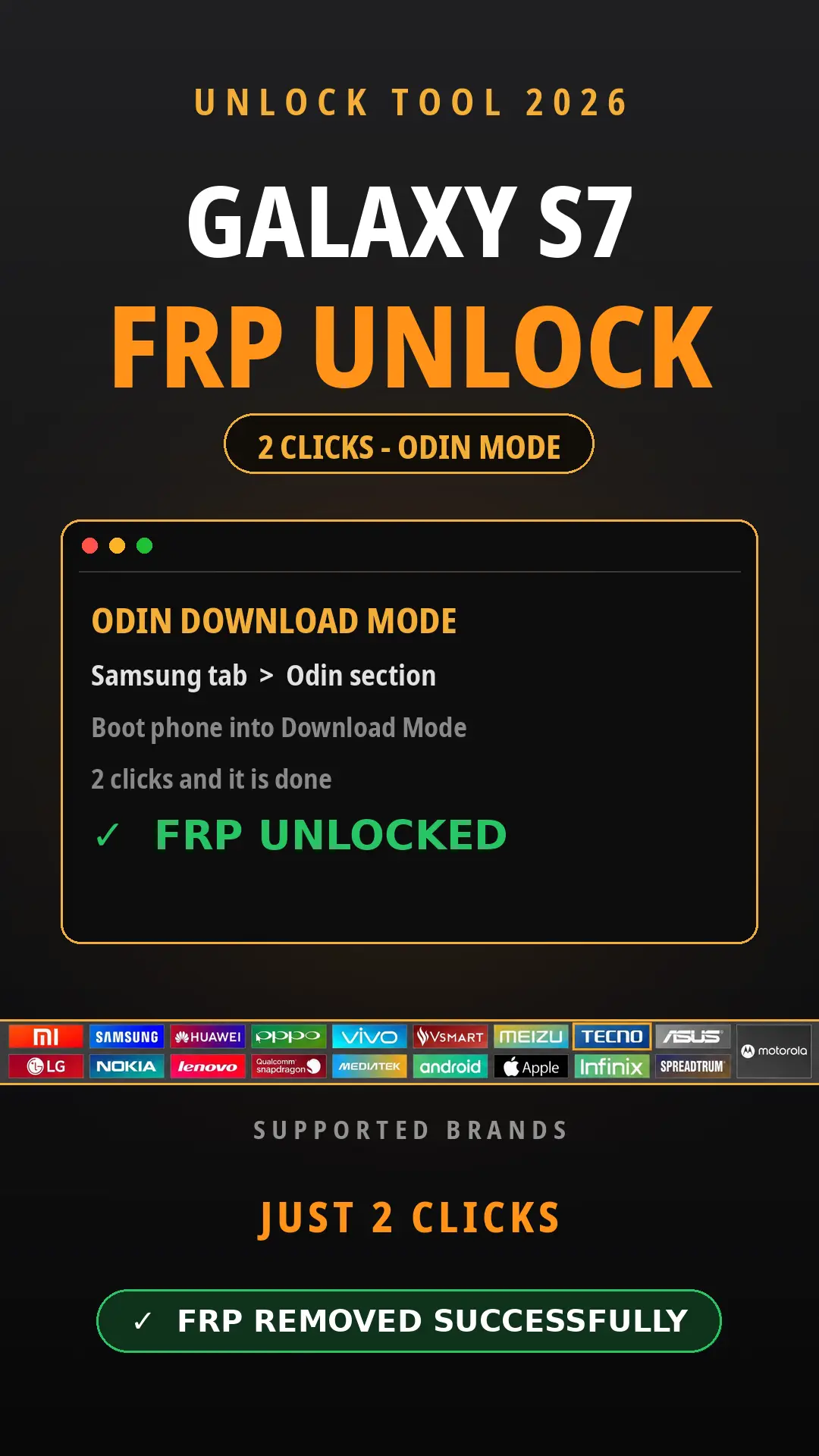
Unlock Tool 2026 – Samsung Galaxy S7 FRP Unlock in 2 Clicks | Odin Download Mode
Samsung Galaxy S7 FRP Unlock in 2 Clicks: If you’re stuck at the Google account verification [FRP Lock] screen, using the FRP Unlock Tool Galaxy S7 Odin Download Mode Just 2 Clicks method is the fastest way back into your phone. OK, so you don’t need to be a software engineer or spend hours trying confusing by-hand tricks. Think about it. We’re going to use the official Unlock Tool to clear that Factory Reset Protection (FRP) right from your PC. It’s a straight shot to getting your device working again.
Truth is, whether your Galaxy S7 is running Android 6.0.1 or 7.0, this workflow handles the Exynos 8890 chip perfectly. That matters. We’ll put your phone into Download Mode, connect it via USB, and let the software do the heavy lifting. I’ll walk you through the exact setup so you can bypass the lock and start using your device like new. Think about it. Let’s get that phone unlocked, believe it or not.
HOW TO BYPASS FRP on GALAXY S7 and possibly more 6.0.1 and 7.0
If your phone is running older firmware, this is exactly how to handle the lock. The FRP Unlock Tool Galaxy S7 Odin Download Mode Just 2 Click method is known to work great on Android 6.0.1 and 7.0 devices running the Exynos 8890 processor. Just follow these steps carefully to clear the Google account requirement.
Open the Software:
Launch Unlock Tool on your computer and log in with your activated account credentials.
Boot into Odin Mode:
Put your Samsung Galaxy S7 into Download (Odin) Mode using the hardware buttons. Once the blue screen appears, connect the phone to your computer with a sturdy USB cable.
Select Your Chipset:
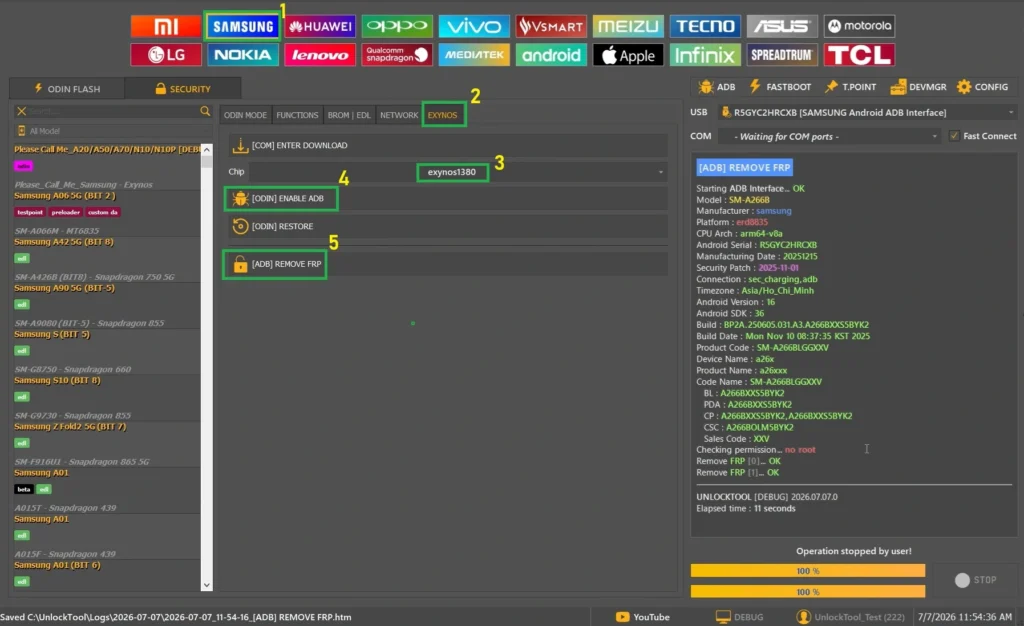
At the top of Unlock Tool, click the Samsung tab. Navigate to the Security section, open the EXYNOS tab, and select your specific CPU model: Exynos 8890.
Click the button labeled [Odin] Enable ADB. Wait a few seconds for the tool to do its job. When it finishes, your Galaxy S7 will automatically reboot back to the setup screen.
Remove FRP:
With the phone turned on and still connected, click the [ADB] Remove FRP option in the tool.
Watch your phone screen! After you click the final button, an “Allow USB debugging” prompt will pop up on your Galaxy S7. Tap Allow immediately. The tool will then finish clearing the lock in just a few seconds.
What You Need Before You Start, and What Matters.
Before you jump into the FRP Unlock Tool Galaxy S7 Odin Download Mode Just 2 Click method, let’s make sure your workspace is fully ready. Simple as that. You really don’t want to get halfway through bypassing the Google account lock only to realize you’ve a loose cable or a missing driver. Here’s the thing — and honestly, taking two minutes to prep your gear prevents almost every common error we see. Think about it. I always recommend using the original Samsung charging cable if you still have it, just to guarantee a solid data connection.
- Truth is, a Windows computer: A reliable PC to run the bypass software without lagging.
- Honestly, an activated Account: You need your valid Unlock Tool login credentials ready to go.
- Good USB Cable: A sturdy data cable to keep the connection stable while your phone is in Odin mode.
- Samsung USB Drivers: Installed on your PC so it can properly communicate with the Galaxy S7 Exynos 8890 chip.
- Sufficient Battery: Make sure the Galaxy S7 is charged to at least 50% so it won’t power off during the reboot cycle.
Step-By-Step Instructions, if you think about it.
Once your computer is prepped, you’re ready to execute the FRP Unlock Tool Galaxy S7 Odin Download Mode Just 2 Click bypass. No joke. Follow these directions carefully—the order matters, and that matters.
- OK, so, log in to the Software: Launch Unlock Tool on your PC and sign in using your registered credentials.
- Truth is, enter Odin Mode: Turn off your Galaxy S7. And that’s key. Use the physical buttons to boot the device into Download (Odin) Mode, then plug it into your computer via USB.
- Get this: select the Brand and Chip. Inside the software, navigate to the Samsung tab at the top. True story. Click on the Security section, then open the EXYNOS tab, plus under the Chip section, pick the Exynos 8890 model.
- OK, so enable ADB: Click the [Odin] Enable ADB button. Honestly. The tool will inject the necessary command to turn on USB debugging. Your phone will reboot automatically when this finishes.
- Honestly, execute the Bypass: Leave the phone connected as it boots up to the setup screen. For real. Click the [ADB] Remove FRP option in the software.
- Look, confirm on Phone: Watch your Galaxy S7 screen closely. True story. When the “Allow USB debugging” or “Allow ADB” pop-up appears, tap Allow. The tool will finalize the removal within seconds.
Bypass Complete! Once the software says “OK,” you can unplug the cable. Honestly. Your phone is now free of the Google account lock and ready for a new setup.
Advertisement
Important Safety and Accuracy Notes
- While the FRP Unlock Tool Galaxy S7 Odin Download Mode Just 2 Click method is generally very safe for your device’s core firmware, you still need to handle the flashing process carefully.
- Don’t Unplug Early: Never pull the USB cable out while the software is actively sending commands or while the phone is rebooting during Step 4. True story. Interrupting a connection in Download Mode can soft-brick the phone, forcing you to re-flash the entire stock ROM.
- OK, so, data Loss: Remember that bypassing FRP doesn’t recover your old data. Honestly. Because the device was already factory reset (which triggered the lock in the first place), your previous photos, apps, and contacts are already gone. This process just gives you access to use the hardware again.
- Look, firmware Limits: This specific Exynos 8890 workaround is highly effective on Android 6.0.1 and 7.0. Honestly. If you somehow have a heavily modified custom ROM installed, you might need to flash back to stock Samsung firmware first before the tool can inject the ADB command properly.
Frequently Asked Questions
Have a question about bypassing the lock on your Exynos device? I’ve rounded up the most common questions we get about this specific FRP Unlock Tool Galaxy S7 Odin Download Mode Just 2 Click workflow.
Does this method wipe my personal data?
If you are stuck on the FRP screen, your data is actually already gone. The Google lock only triggers after a factory reset has wiped the device. This bypass simply allows you to skip the account verification so you can set the phone up as new.
What if my Galaxy S7 has a Snapdragon processor instead of Exynos?
This specific two-click Odin mode workflow is engineered specifically for the Exynos 8890 chipset found in international and certain carrier models. If you try to run this ADB injection on a Snapdragon variant, the tool will likely throw an error or fail to reboot the device.
Can I use this software for free?
No, Unlock Tool is a premium professional repair software that requires a paid license activation to log in and use its features. You cannot perform this exact bypass without a registered account.
What happens if I miss the “Allow ADB” popup?
If you don’t tap “Allow” quickly enough on your phone’s screen during the final step, the tool will report a failure because it cannot send the removal command. You will need to click the [ADB] Remove FRP button again and watch the screen closely.
How do I put the phone into Odin Mode?
Turn the Galaxy S7 off completely. Press and hold the Volume Down, Home, and Power buttons simultaneously until you see a warning screen. Then press Volume Up to confirm and enter Download (Odin) Mode.
Can I flash custom firmware after removing the lock?
Once the lock is removed and you have successfully logged into the phone with a new account (or skipped setup), the device operates normally. You are free to flash authorized firmware, though unlocking the bootloader is a separate process.
Advertisement
Final Thoughts:
Getting locked out of your own device after a reset is really frustrating, especially on older but perfectly good hardware. Simple as that. The FRP Unlock Tool Galaxy S7 Odin Download Mode Just 2 Click method remains the absolute cleanest way to clear that Exynos 8890 block. It completely removes the headache of digging through complicated accessibility menus or dealing with patched TalkBack exploits. Truth is, once you’ve clicked that final ADB prompt and the phone reboots, you’re totally done. And that’s key. I always recommend immediately diving into the settings and tying the phone to a new Google account that you actually use daily. This ensures all your new backups start working properly and prevents you from getting locked out again.
Disclaimer:
The information provided in this guide detailing the FRP Unlock Tool Galaxy S7 Odin Download Mode Just 2 Click method is intended strictly for educational purposes and the lawful servicing of devices you legally own or have explicit authorization to repair. Think about it. Bypassing Factory Reset Protection (FRP) should only be performed to recover access to your own personal device.
Please be aware that software features, compatibility, and results can change based on your specific phone model, firmware version, region, and updates to the tool itself. That matters. Always follow the software provider’s terms of service. We aren’t responsible for any data loss, device damage, misuse of these instructions, or actions taken by third-party applications. No joke. Get this: if your device is accessible, always back up your data before attempting any firmware modifications or bypass procedures.