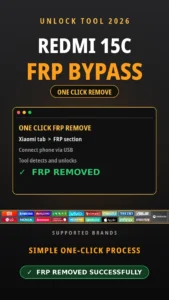
Unlock Tool 2026 – Samsung Exynos FRP Bypass | Enable ADB in Download Mode
Advertisement
What This Tool Does
Unlock Tool 2026 handles Samsung Exynos FRP bypass in pretty much one click. The main trick is that it can enable ADB while the phone sits in Download Mode (also called Odin Mode), and once ADB is up, the FRP lock comes off. No need to jump between three different programs to get it done. If your Samsung is stuck on factory reset protection after a reset, this is the process that clears it.
How to Enable ADB in Download Mode
Put the Phone in Download Mode
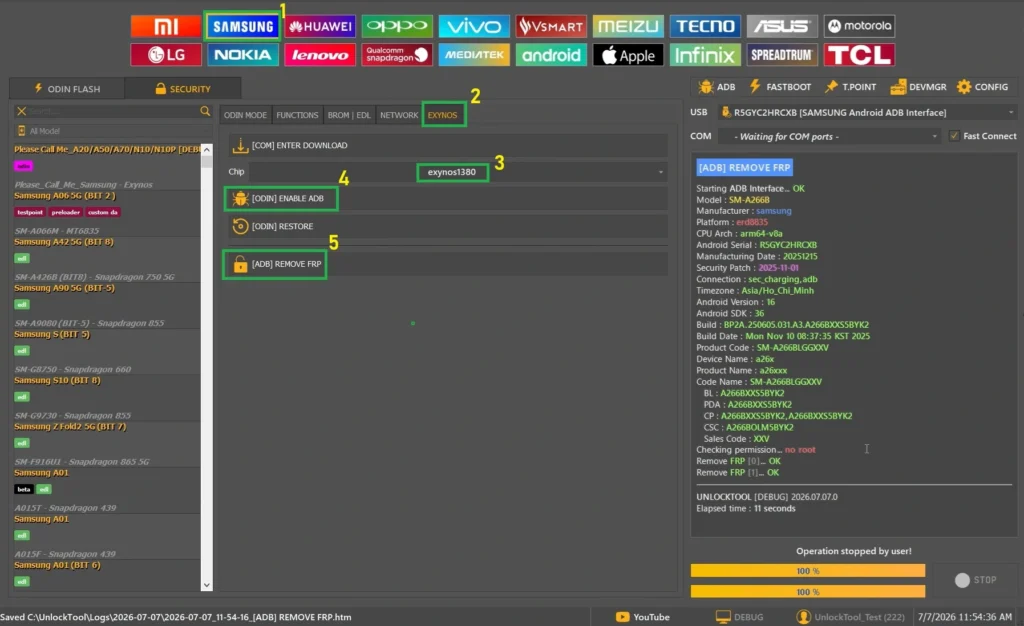
Power the Samsung off, then use the key combination for your model to reboot into download mode. Plug it into the PC with a good USB cable and open Unlock Tool 2026. The tool should detect the phone right away.
Enable ADB
Pick your Exynos chipset if it doesn’t auto-detect, then hit Enable ADB. The tool talks to the phone over the download mode interface and switches on USB debugging. You’ll see the phone show up as an ADB device once it’s done.
Samsung Exynos FRP Bypass Process
Remove FRP
With ADB enabled, click Remove FRP. The tool pushes what it needs, clears the Google account lock, and wipes the FRP data. Takes a minute or two, then it’s done.
Reboot and Check
The phone reboots on its own. Go through the setup — the Google verification screen should be gone. If the phone asks you to allow USB debugging during the process, tap Allow.
Which Phones Work
This is for Samsung phones running Exynos chips — mostly the Galaxy A series and M series. Exynos 2200, 1380, 1330, 1280 and similar processors are covered. If your phone runs a Snapdragon instead, this particular method isn’t for it.
Download and Install
Grab the latest version of Unlock Tool 2026 from the download link and extract the zip. Turn off Windows Defender before extracting or it’ll delete some of the tool’s files as a false positive. Run it as administrator, install the Samsung USB drivers if the phone isn’t detected, and you’re set.