
Introduction:
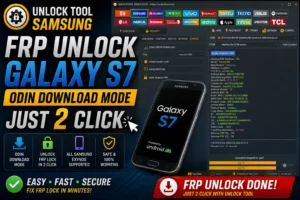
If you’re stuck at the Google account verification screen, using the FRP Unlock Tool Galaxy S7 Odin Download Mode Just 2 Click method is the fastest way back into your phone.
You don’t need to be a software engineer or spend hours trying confusing by-hand tricks. We are going to use the official Unlock Tool to clear that Factory Reset Protection (FRP) right from your PC. It’s a straight shot to getting your device working again.
Whether your Galaxy S7 is running Android 6.0.1 or 7.0, this workflow handles the Exynos 8890 chip perfectly. We’ll put your phone into Download Mode, connect it via USB, and let the software do the heavy lifting. I’ll walk you through the exact setup so you can bypass the lock and start using your device like new. Let’s get that phone unlocked.
HOW TO BYPASS FRP on GALAXY S7 and possibly more 6.0.1 and 7.0
If your phone is running older firmware, this is exactly how to handle the lock. The FRP Unlock Tool Galaxy S7 Odin Download Mode Just 2 Click method is known to work great on Android 6.0.1 and 7.0 devices running the Exynos 8890 processor. Just follow these steps carefully to clear the Google account requirement.
Key Takeaways
Before you start plugging cables in, here is a quick look at exactly what you need to know and what to expect from this bypass.
Fast Workflow: The FRP Unlock Tool Galaxy S7 Odin Download Mode Just 2 Click method completely skips frustrating hand-bypass tricks.
Hardware Needed: You’ll need a Windows PC, a solid USB cable, and an activated Unlock Tool account.
Compatibility: This guide specifically targets the Exynos 8890 chipset and works flawlessly on Android 6.0.1 and 7.0 firmware versions.
Two-Part Process: The software first enables ADB while the phone is in Download Mode, then uses an ADB command to wipe the lock after the phone reboots.
Crucial Step: You must watch your phone screen to tap “Allow” when the USB debugging prompt appears, or the final unlock will fail.
Download and Access the Required Tool
To execute the FRP Unlock Tool Galaxy S7 Odin Download Mode Just 2 Click method, you need the right software ready on your Windows PC. Keep in mind that this is a professional service program, meaning you must have an active registered account to log in and access the Exynos security features.
Grab the latest official release directly from the source to ensure you have the most up-to-date Samsung security patches covered for a smooth bypass.
Get the official software needed for this workflow.
What You Need Before You Start
Before you jump into the FRP Unlock Tool Galaxy S7 Odin Download Mode Just 2 Click method, let’s make sure your workspace is completely ready. You really don’t want to get halfway through bypassing the Google account lock only to realize you have a loose cable or a missing driver.
And honestly, taking two minutes to prep your gear prevents almost every common error we see. I always recommend using the original Samsung charging cable if you still have it, just to ensure a solid data connection.
Windows Computer: A reliable PC to run the bypass software without lagging.
Activated Account: You need your valid Unlock Tool login credentials ready to go.
Good USB Cable: A sturdy data cable to keep the connection stable while your phone is in Odin mode.
Samsung USB Drivers: Installed on your PC so it can properly communicate with the Galaxy S7 Exynos 8890 chip.
Sufficient Battery: Make sure the Galaxy S7 is charged to at least 50% so it won’t power off during the reboot cycle.
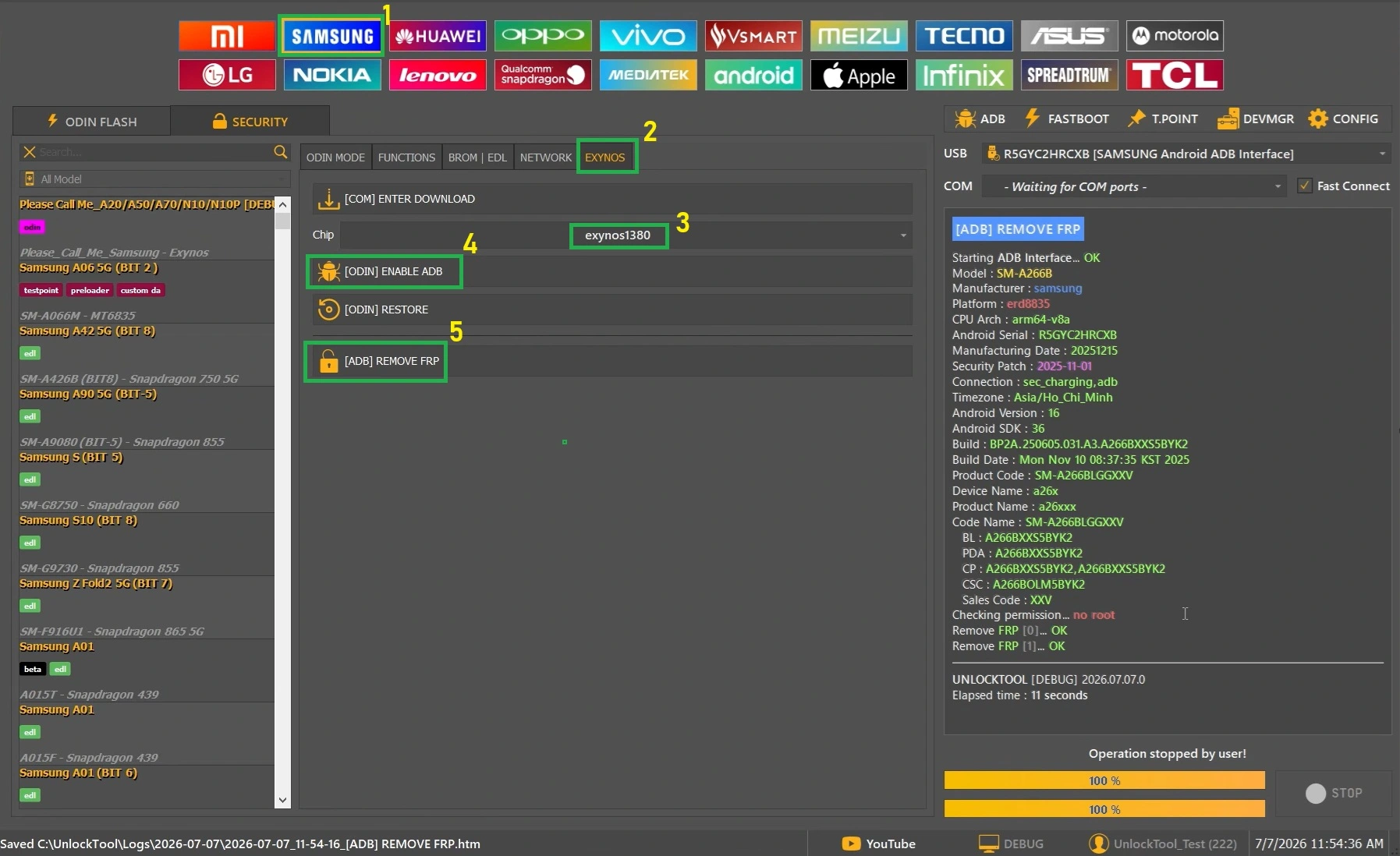
Step-by-Step Instructions
Once your computer is prepped, you are ready to execute the FRP Unlock Tool Galaxy S7 Odin Download Mode Just 2 Click bypass. Follow these directions carefully—the order matters.
🔥 Recommended Success Reports

Common Problems and Fixes
Even with a solid process like the FRP Unlock Tool Galaxy S7 Odin Download Mode Just 2 Click method, things can occasionally hang up. In my experience, 90% of failures with this specific Exynos bypass come down to basic connection issues rather than actual software bugs.
Reinstall Samsung USB drivers and restart your PC.
Force restart by holding Volume Down + Power for 10 seconds.
Disconnect, click [Odin] Enable ADB again, and re-connect.
Important Safety and Accuracy Notes
While the FRP Unlock Tool Galaxy S7 Odin Download Mode Just 2 Click method is generally very safe for your device’s core firmware, you still need to handle the flashing process carefully.
Frequently Asked Questions
Have a question about bypassing the lock on your Exynos device? I’ve rounded up the most common questions we get about this specific FRP Unlock Tool Galaxy S7 Odin Download Mode Just 2 Click workflow.
Does this method wipe my personal data?
If you are stuck on the FRP screen, your data is actually already gone. The Google lock only triggers after a factory reset has wiped the device. This bypass simply allows you to skip the account verification so you can set the phone up as new.
What if my Galaxy S7 has a Snapdragon processor instead of Exynos?
This specific two-click Odin mode workflow is engineered specifically for the Exynos 8890 chipset found in international and certain carrier models. If you try to run this ADB injection on a Snapdragon variant, the tool will likely throw an error or fail to reboot the device.
Why isn’t the software recognizing my phone in Download Mode?
This is almost always a driver problem. Make sure you have installed the official Samsung USB drivers on your Windows PC. Also, try swapping the USB cable and plugging it directly into a rear port on your motherboard rather than a hub.
Can I use this software for free?
No, Unlock Tool is a premium professional repair software that requires a paid license activation to log in and use its features. You cannot perform this exact bypass without a registered account.
What happens if I miss the “Allow ADB” popup?
If you don’t tap “Allow” quickly enough on your phone’s screen during the final step, the tool will report a failure because it cannot send the removal command. You will need to click the [ADB] Remove FRP button again and watch the screen closely.
Will this method work on Android 7.0 (Nougat)?
Yes. This specific method is highly effective for Galaxy S7 models running older firmware versions like Android 6.0.1 (Marshmallow) and Android 7.0 (Nougat). The security patches on these versions allow the ADB injection to work smoothly.
How do I put the phone into Odin Mode?
Turn the Galaxy S7 off completely. Press and hold the Volume Down, Home, and Power buttons simultaneously until you see a warning screen. Then press Volume Up to confirm and enter Download (Odin) Mode.
Can I flash custom firmware after removing the lock?
Once the lock is removed and you have successfully logged into the phone with a new account (or skipped setup), the device operates normally. You are free to flash authorized firmware, though unlocking the bootloader is a separate process.
Final Thoughts
Getting locked out of your own device after a reset is incredibly frustrating, especially on older but perfectly good hardware. The FRP Unlock Tool Galaxy S7 Odin Download Mode Just 2 Click method remains the absolute cleanest way to clear that Exynos 8890 block. It entirely removes the headache of digging through complicated accessibility menus or dealing with patched TalkBack exploits.
Once you have clicked that final ADB prompt and the phone reboots, you are completely done. I always recommend immediately diving into the settings and tying the phone to a new Google account that you actually use daily. This ensures all your new backups start working properly and prevents you from getting locked out again.
Disclaimer
The information provided in this guide detailing the FRP Unlock Tool Galaxy S7 Odin Download Mode Just 2 Click method is intended strictly for educational purposes and the lawful servicing of devices you legally own or have explicit authorization to repair. Bypassing Factory Reset Protection (FRP) should only be performed to recover access to your own personal device.
Please be aware that software features, compatibility, and results can change based on your specific phone model, firmware version, region, and updates to the tool itself. Always follow the software provider’s terms of service. We are not responsible for any data loss, device damage, misuse of these instructions, or actions taken by third-party applications. If your device is accessible, always back up your data before attempting any firmware modifications or bypass procedures.