
Introduction:
If you’re stuck on the Google account verification screen after a hard reset, using a reliable Redmi 15C FRP Unlock Tool is the absolute fastest way to get your phone fully working again. Factory Reset Protection (FRP) is a great security feature, but it can be extremely frustrating when you genuinely forget your credentials or buy a used device. In just one click, you can clear that security lock and regain complete control of your smartphone.
Unlock Tool is widely known as one of the most powerful Android servicing programs out there. It handles repairing, flashing, and unlocking for roughly 90% of Android devices on the market today. And the best part? The Redmi 15C is fully supported, meaning you don’t need complicated workarounds to get this done.
Redmi 15C
Unlock Tool (Latest Version)
One-Click (PC via USB)
In this guide, I’ll walk you through exactly how to erase the FRP lock using a Windows PC and a simple USB cable. Before we get into the exact button combinations and settings, make sure you have the software ready to go. You can grab the official setup straight from the Unlock Tool download page.
Key Takeaways
Before we open the software and start clicking, here’s a quick rundown of how this process works and exactly what you’ll need to get the job done right on the first try.
-
Fast One-Click Fix: This Redmi 15C FRP Unlock Tool workflow removes the Google account lock in just a few seconds using your computer. -
Required Software: You’ll need an active, up-to-date version of Unlock Tool running on a Windows PC to perform the wipe. -
Unique Settings Trick: You won’t actually see your exact model listed in the tool. We’ll select the Redmi 13C and load a specific custom DA patch to make it work. -
Hardware Connection: Have a reliable USB cable handy. You’ll need to hold both the Volume Up and Volume Down buttons while plugging in the powered-off phone. -
Expected Result: Once the tool finishes its process, the FRP lock is permanently wiped, letting you set up the device like it’s brand new out of the box.
Download and Access the Required Tool
To get started with the Redmi 15C FRP Unlock Tool process, you first need the actual software installed on your computer. Unlock Tool is a premium Windows-based service program. If you don’t already have it, you’ll need to download the latest setup file and ensure your account is active.
Before running the software, it’s usually a good idea to temporarily disable your Windows Defender or primary antivirus. Sometimes these security programs flag mobile servicing tools because of the way they communicate with device bootloaders. You can turn your protection right back on as soon as the bypass is complete.
Make sure you are grabbing the most recent build to ensure it includes the specific MediaTek (MTK) patch we are going to use for this device. Older versions might not list the custom DA files needed to clear the security partition.
Once downloaded, simply extract the ZIP file, run the executable, and log in with your registered credentials. After the main dashboard loads, you’ll be ready to configure the settings for the Redmi 15C.
What You Need Before You Start
Before starting the Redmi 15C FRP Unlock Tool procedure, you need to make sure your setup is ready. Missing even one of these basic requirements usually means the software won’t detect the phone, or the erase command will fail halfway through.
-
Windows PC: The software runs exclusively on Windows (preferably Windows 10 or 11). Mac and Linux setups are not directly supported without a proper virtual machine. -
Active Unlock Tool License: You must have a registered and actively licensed account to log in and use the MediaTek functions. -
Good USB Cable: A high-quality data cable is absolutely required. A flimsy charging-only cable won’t transfer the preloader commands. -
Working Phone Buttons: You need functional Volume Up and Volume Down buttons to force the phone into the correct connection mode when plugging it in. -
Battery Life: Ensure your phone has at least a 30% charge before starting. A device dying during a bootloader interaction can cause serious software corruption.
If this is your first time using mobile repair software on your current PC, Windows will usually handle the basic MediaTek USB drivers automatically when you plug the device in while holding the buttons.
Step-by-Step Instructions
Now that everything is prepped, let’s dive into the actual Redmi 15C FRP Unlock Tool process. Follow these steps exactly as written. The custom DA selection trick is the most critical part, so don’t skip over it.
Open Unlock Tool on your PC and sign in with your username and password. Wait a few moments for the main dashboard to fully load and connect to the server.
At the top of the interface, click on the MI category tab. From there, click on the Security sub-tab to access the model list.
In the model search bar, you won’t search for 15C directly. Instead, search for and select Redmi 13C from the list. They share compatible bootloader architecture for this specific task.
Look for the Preloader Auth section. Check the box for XIAOMI Custom DA. A dropdown menu will appear—click it and select the exact file named
Redmi-13-Tides-Moon-Android-15-Patch.mtk.Selecting the wrong custom DA file can cause the software to hang or throw an error. Make sure it matches the exact filename above before clicking the final button.
With your settings locked in, click the button labeled [Preloader] Erase FRP. The tool will immediately switch to a “waiting for device” state.
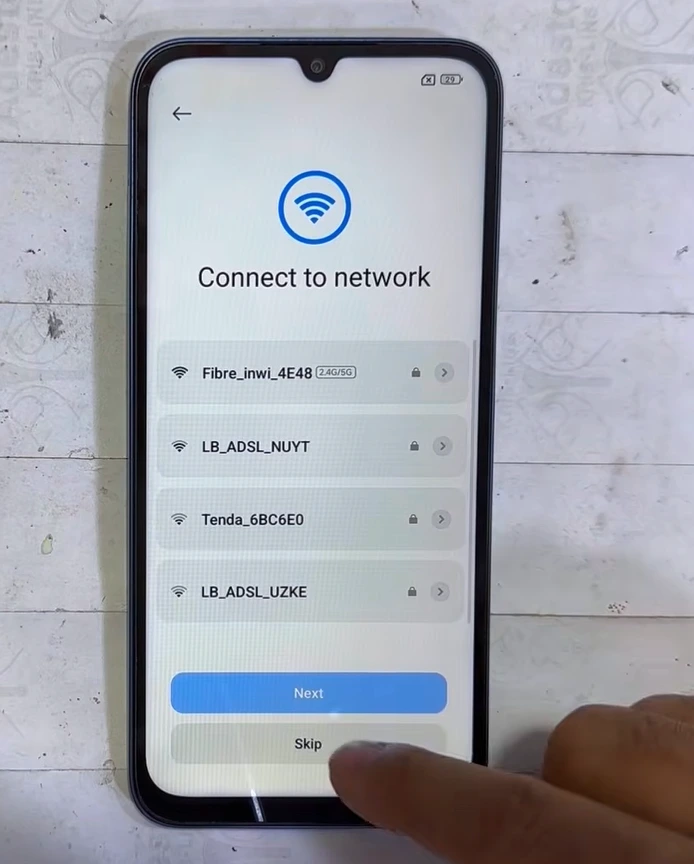
Turn your Redmi completely OFF. While it is powered down, press and hold both the Volume Up and Volume Down buttons simultaneously. While holding them, plug the USB cable into the phone and the PC. Keep holding the buttons until you see the progress bar start moving in the software.
🔥 Recommended Success Reports
 Remove FRP Unlock Tool 2026 – Samsung Exynos Enable ADB In Download Mode✔
- FRP Unlock Tool Galaxy S7 Odin Download Mode Just 2 Click✔
- Samsung Exynos Enable ADB In Download Mode, Remove FRP UnlockTool✔
- Remove Samsung FRP Android 16 Devices Via COM MTP Done By Unlock Tool 2026✔
- Download Unlock Tool 2026: Official Setup & Latest Security Updates✔

Once the progress bar completes, you will see an “Erase FRP OK” message. You can now unplug the phone and turn it on normally. The Google account lock is completely gone.
Common Problems and Fixes
Even with a solid program like this, sometimes things don’t go exactly as planned. If the software gets stuck on “Waiting for Device” or throws an immediate error code, it’s usually a simple connection issue rather than a broken phone. Here are the most common snags I see people hit during the Redmi 15C FRP Unlock Tool procedure and exactly how to fix them.
Check your buttons. You must hold Volume Up + Down before plugging in the cable.
You missed the DA step. Go back and select the specific Custom DA patch for the Redmi 13C.
Swap the USB cable. Cheap charging cables drop the data connection instantly.
In my experience, 90% of failures with MediaTek devices come down to either missing MediaTek USB drivers on the PC or simply pressing the wrong button combination when connecting. If it fails once, just unplug the phone, hold the power button to force it to restart, shut it down normally, and try the steps again.
If you keep getting driver-related errors, reboot your computer, open your device manager, and look for a yellow warning triangle under “Ports” when you plug the phone in. You might need to manually install the standard MTK driver package.
Important Safety and Accuracy Notes
Running low-level preloader commands on a modern MediaTek device is generally very safe when using trusted software, but there are a few limits and precautions you should be aware of to prevent accidental data loss or software bricks.
Once you plug the phone in and the progress bar starts moving, absolutely do not pull the USB cable or let the PC go to sleep. Interrupting a partition erase can corrupt the bootloader and leave the phone totally unresponsive.
Remember that performing an FRP wipe on the Redmi 15C will not recover any lost photos, contacts, or app data from before the reset. The lock is tied to the previous Google account; clearing it essentially forces a completely clean slate on the internal storage.
Lastly, ensure you are only applying the Redmi 13C custom DA patch (Redmi-13-Tides-Moon-Android-15-Patch.mtk) to this specific model family. Trying to use this exact file on older Xiaomi devices with completely different chipsets will result in an immediate rejection from the program.
Frequently Asked Questions
If you still have questions about clearing your device’s security partition, you’ll probably find the answer here.
Will this method delete my personal data?
Yes. Erasing the FRP lock partition permanently wipes any user data left on the device. Since you are already locked out of the phone following a hard reset, this data is generally considered inaccessible anyway.
Why do I select the Redmi 13C in the menu?
Both models share similar bootloader architecture and MediaTek chipsets. Selecting the 13C allows the software to properly load the specific Custom DA patch required to communicate with the 15C’s security partition.
Can I use a free version of the Redmi 15C FRP Unlock Tool?
No, the software requires a paid, registered license to function. There are no reliable “free” versions of this specific tool, and cracked versions often contain malware or simply fail to connect to the required server.
What if the tool gets stuck on “Waiting for Device”?
This almost always means the phone isn’t entering Preloader mode correctly. Ensure the device is fully powered off, hold both Volume Up and Volume Down simultaneously, and then plug in the USB cable.
Do I need to install any special drivers first?
Windows 10 and 11 usually install standard MediaTek USB VCOM drivers automatically. If the software doesn’t detect the phone, you may need to download and install the MTK drivers manually from your device manager.
How long does the unlocking process take?
Once you click the erase button and successfully connect the phone holding the volume buttons, the actual software process usually finishes in under 30 seconds.
Will this fix a device locked to a specific carrier?
No. This specific Preloader Erase command only removes the Google account Factory Reset Protection (FRP). It does not unlock the phone for use on different cellular networks.
Can I use a Mac to run this process?
The software is built exclusively for Windows operating systems. If you only have a Mac, you will need to set up a Windows virtual machine or bootcamp partition to use the tool successfully.
Final Thoughts
Getting locked out by your own phone’s security system is frustrating, but fixing it doesn’t have to be. As you can see, the Redmi 15C FRP Unlock Tool process is incredibly straightforward once you know the exact Custom DA patch to select. You don’t need to spend hours messing around with confusing bypass apk files, floating menus, or TalkBack settings that constantly get patched by new firmware updates.
At this point, you can safely unplug your phone and power it on. It will boot up directly to the initial “Hello” screen, and the Google Account verification step will be entirely gone. You can now add a new Google account and start using the device immediately.
If you haven’t grabbed the software yet and want to run this fix right now, head over to the Unlock Tool official download page to pull the latest build. Make sure your USB cable is solid, hold those volume buttons tightly during the connection, and you’ll be back on your home screen in no time.
Disclaimer
The information provided in this Redmi 15C FRP Unlock Tool guide is intended strictly for educational purposes and the lawful servicing of devices you personally own or have explicit authorization to repair. Tool capabilities, firmware compatibility, required files, and expected results can change frequently based on the device’s specific region, current Android patch level, and the software version being used. Always back up your data beforehand when possible, and ensure you comply fully with the software provider’s terms of service. We are not responsible for any accidental data loss, hardware damage (bricking), improper use of repair tools, or issues caused by third-party modifications.