
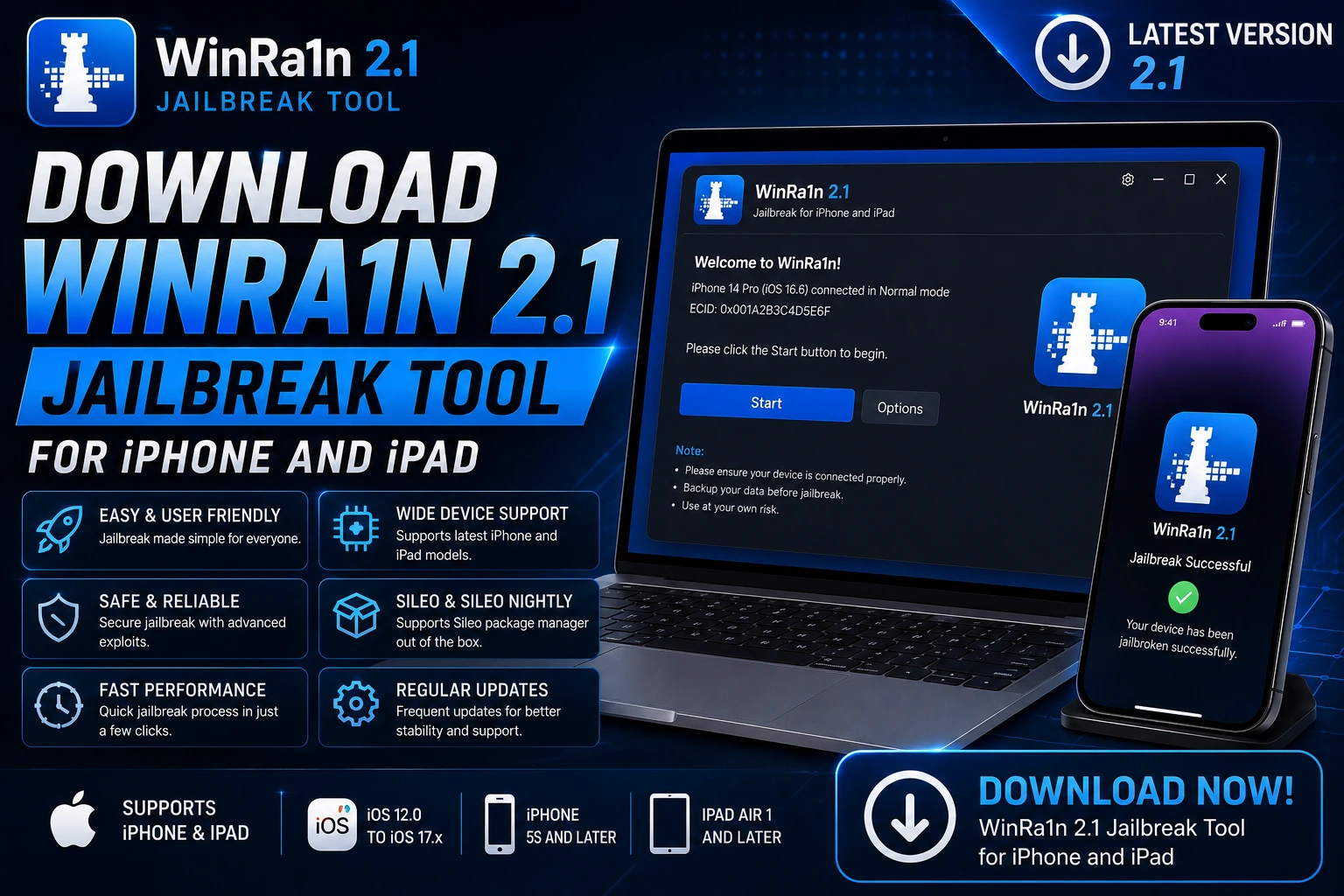
Introduction:
Download WinRa1n 2.1 Jailbreak Tool for iPhone and iPad right here and get a clean Windows path for supported devices. WinRa1n 2.1 is a Windows jailbreak utility built around the checkM8 bootrom exploit. It covers many A7–A11 iPhones and iPads running iOS 12 through 17 and packages checkra1n and palera1n options in one place.
If you already work with unlock tools and Apple servicing, this utility can sit alongside your usual setup for compatible models. The guide walks you through what the tool does, which devices it targets, and how to grab the package safely.
Download Winra1n 2.1 Windows Jailbreak iOS 12 – 17 (Palera1n no USB, Checkra1n no USB)
You can download WinRa1n 2.1 Jailbreak Tool for iPhone and iPad as a Windows package that brings checkra1n and palera1n options together for supported A7–A11 devices. The zip includes the tool plus Apple USB driver files so you can get started on a PC without hunting extra drivers.
WinRa1n targets iOS 12 through 17 on compatible models. It leans on the checkM8 bootrom exploit, which is why older A-series chips stay in play. Before you run anything, confirm your device chip and iOS version match the supported range. A mismatched phone simply will not jailbreak with this package.
And remember—this is a Windows-only route. Mac users still need the native checkra1n or palera1n builds. Stick to the devices listed later in this guide so you do not waste time on unsupported hardware.
Download WinRa1n 2.1 Latest Version for Windows
The latest WinRa1n 2.1 build is the Windows package you want if you plan to run checkra1n or palera1n options from a PC. This version of the Download WinRa1n 2.1 Jailbreak Tool for iPhone and iPad ships as a single zip that already packs the Apple USB drivers, so most users skip a separate driver hunt.
Inside the archive you get the core tool plus bundled checkra1n builds (0.12.4 and 0.1337.1) and palera1n support. It still relies on the checkM8 bootrom exploit, which is why only A7 through A11 devices stay compatible. Newer chips simply fall outside the exploit range.
Download the current WinRa1n 2.1 Windows zip below. Extract every file before you launch the executable.
But always double-check your iPhone or iPad model against the supported list later in this guide. A quick model match saves a lot of wasted attempts.
Step 8. For Checkra1n Windows NO USB jailbreak using Winra1n
WinRa1n 2.1 bundles checkra1n options so Windows users can run the checkM8 path without switching to a Mac. This section covers the Checkra1n Windows route that the tool offers for supported A7–A11 devices. The Download WinRa1n 2.1 Jailbreak Tool for iPhone and iPad already includes the needed checkra1n builds, so you stay inside one package.
Launch the extracted WinRa1n 2.1 tool and choose the checkra1n path (0.12.4 or 0.1337.1). Make sure your device is on a supported iOS version before you continue.
Put the iPhone or iPad into DFU mode when the tool asks. Use a genuine cable and a USB 2.0 port if the first attempt fails. The tool handles the rest of the checkra1n process once DFU is confirmed.
Do not unplug the device until the tool reports success. After reboot you should see the checkra1n loader or related icons if the process completed cleanly.
How to Install Sileo with Winra1n Windows Jailbreak 2.1 iOS 17 – 12 (Palera1n / Checkra1n)
Once the Download WinRa1n 2.1 Jailbreak Tool for iPhone and iPad finishes its checkra1n or palera1n path, many users look for Sileo as the package manager. Palera1n builds usually bring Sileo in by default. Checkra1n paths lean toward Cydia, so the exact icon you see depends on which option you selected inside WinRa1n.
Complete the full process on a supported A7–A11 device running iOS 12–17. Do not interrupt the tool or unplug the cable until it reports success and the device reboots.
After reboot, scan the home screen. Palera1n routes inside WinRa1n commonly place Sileo automatically. If you used a checkra1n build you may see Cydia instead.
Tap the Sileo icon, let it finish any first-run setup, then refresh the default sources. From there you can search and install packages as usual.
Download WinRa1n For Windows
Ready to grab the Windows package? The Download WinRa1n 2.1 Jailbreak Tool for iPhone and iPad comes as a single zip built for Windows PCs. It already includes the Apple USB drivers plus the checkra1n and palera1n options that ride on the checkM8 exploit.
Platform
Windows only (zip package)
Included
CheckM8, Checkra1n 0.12.4, Checkra1n 0.1337.1, Palera1n, Apple USB drivers
Target chips
A7 – A11 devices on supported iOS versions
Download the WinRa1n for Windows zip below. Extract the full folder before you run anything.
But always match your iPhone or iPad against the supported list later in the guide. If driver errors appear, the notes at downloadunlocktool.com USB drivers can help clear the path.
Step 6. For Palera1n Windows Jailbreak No USB using Winra1n Windows (Rootfull or Rootless)
After you Download WinRa1n 2.1 Jailbreak Tool for iPhone and iPad, you can continue with the Palera1n jailbreak process directly from the WinRa1n interface. This mode is intended only for supported Apple devices and compatible iOS versions. Before starting, make sure you’ve already completed the earlier preparation steps and installed the required Apple USB drivers if needed.
Open WinRa1n with administrator privileges and wait until the main dashboard finishes loading.
Choose the Palera1n option from the available jailbreak engines inside WinRa1n.
Select the jailbreak type that matches your intended workflow. If you’re unsure, keep using the same mode recommended for your device and iOS version.
WinRa1n will display the required steps for putting the device into the correct boot mode. Complete each instruction exactly as shown before moving forward.
Once the process starts, avoid disconnecting the device or closing WinRa1n. The utility will continue automatically until the jailbreak finishes.
🔥 Recommended Success Reports

USB Drivers collection
before continuing.
Step 7. Installing Palera1n Loader with WinRa1n 2.1 Windows
After the jailbreak completes successfully, follow the prompts inside WinRa1n to install the Palera1n Loader. Once installed, open the loader on your device and complete any remaining setup steps required for your selected Rootfull or Rootless environment. When everything finishes without errors, your device is ready for the next stage of the jailbreak workflow.
[ Video ] How to Download Winra1n 2.1 Jailbreak Windows Without USB
After you Download WinRa1n 2.1 Jailbreak Tool for iPhone and iPad, you may want a visual walkthrough before starting the jailbreak. A short video can help you understand the download process, required files, and the basic setup for supported devices. Before running the tool, verify that your Windows PC, Apple USB drivers, and supported iPhone or iPad are ready.
1
Use the official download package provided below and save it to an easy-to-find folder on your Windows computer.
2
Follow each step shown in the tutorial before attempting the jailbreak. Watching the complete process first can help you avoid simple setup mistakes.
3
Extract the downloaded ZIP file, run WinRa1n as Administrator, and continue with the jailbreak method that matches your supported device.
Download the latest WinRa1n 2.1 package using the button below.
Apple USB Drivers
before trying the jailbreak again.
Video Tutorial Tips
Pause the video whenever necessary and compare each step with your own setup. Don’t skip any instructions, especially when entering the required boot mode. Following the process carefully gives you a smoother jailbreak experience and reduces the chance of setup errors.
Key Takeaways
Before you finish reading this guide, here are the most important points about Download WinRa1n 2.1 Jailbreak Tool for iPhone and iPad. These highlights can help you prepare your Windows PC, avoid common setup issues, and complete the jailbreak process more smoothly.
WinRa1n 2.1 is a Windows-based jailbreak utility designed for supported Apple devices and compatible iOS versions.
Install the latest Apple USB Drivers before starting so Windows can properly detect your iPhone or iPad.
Carefully follow every on-screen instruction when entering DFU or the required boot mode. Skipping a step can interrupt the jailbreak process.
Keep the USB connection stable and avoid disconnecting the device until WinRa1n reports that the process has finished.
After a successful jailbreak, install the required loader and verify that everything is working before making additional system changes.
USB Drivers collection
before beginning the jailbreak setup.
Frequently Asked Questions
What is WinRa1n 2.1?
WinRa1n 2.1 is a Windows utility that helps users run supported jailbreak workflows on compatible iPhone and iPad models. It combines multiple jailbreak methods inside one Windows application.
How do I Download WinRa1n 2.1 Jailbreak Tool for iPhone and iPad?
Download the latest WinRa1n package from the provided download link in this guide, extract the ZIP file, and launch the application with Administrator permission before starting the jailbreak process.
Do I need Apple USB Drivers?
Yes. Installing the latest Apple USB Drivers is recommended because Windows must properly recognize your iPhone or iPad before the jailbreak can begin.
Which devices are generally supported?
Support depends on your device chipset, iOS version, and the jailbreak method available inside WinRa1n. Always verify compatibility before starting.
Why isn’t my iPhone detected?
Check the USB cable, reinstall Apple USB Drivers, restart both the computer and the device, then reconnect it using a reliable USB port.
Will jailbreaking erase my data?
It’s always a good idea to create a complete backup before making any system-level changes. A backup protects your personal files if something unexpected happens.
How long does the jailbreak usually take?
The time varies depending on your computer, device, and jailbreak method, but most supported procedures finish within a few minutes if everything is configured correctly.
Can I disconnect the USB cable during the process?
No. Keep the connection stable until WinRa1n reports that the jailbreak has completed successfully.
Is WinRa1n suitable for every iPhone?
No. Compatibility depends on the supported hardware and software versions. Unsupported models or iOS releases may not work with the available jailbreak methods.
Should I use this tool only on my own device?
Yes. Only perform servicing or jailbreaking on devices you own or have clear authorization to modify.
Final Thoughts
Download WinRa1n 2.1 Jailbreak Tool for iPhone and iPad is a practical choice if you need a Windows-based solution for supported jailbreak workflows. When your device, iOS version, and drivers all meet the required conditions, the setup is straightforward and doesn’t require unnecessary extra steps. Taking a few minutes to prepare your PC before starting can save you a lot of troubleshooting later.
Always verify that your iPhone or iPad is supported before attempting any jailbreak. Creating a full backup is also recommended so your personal data remains protected if something doesn’t go as planned. And if Windows fails to recognize your device, installing the latest Apple USB Drivers should be your first troubleshooting step.
Apple USB Drivers
,
follow the steps in this guide carefully, and only perform the jailbreak on devices that you own or have permission to service.
Disclaimer
This guide is provided for educational purposes and for the lawful servicing of devices that you own or are explicitly authorized to repair or modify. Always make sure you understand the process before using any servicing or jailbreak utility.
Device compatibility, supported features, jailbreak methods, firmware support, and software behavior may change depending on your iPhone or iPad model, iOS version, region, and the specific version of WinRa1n or related tools you use. Verify compatibility before starting any procedure.
Whenever possible, create a complete backup of your important data before making system-level changes. You should also follow the official terms, license conditions, and usage guidelines provided by the software developer.
The information on this website is provided in good faith. We are not responsible for data loss, device damage, software conflicts, misuse of the information, or actions performed by third-party tools or services. You are responsible for how you choose to use the information provided in this guide.