
Introduction:
Download Huawei USB 1.0 Kirin Flash Device 2.01.02.00 Unlock Tool Drivers if your PC won’t recognize your Huawei phone while it’s sitting in Flash Mode. That’s the exact problem these drivers fix. They’re built for Huawei devices running on Kirin chipsets, and their whole job is to help Windows actually see your phone the way it needs to before any firmware work can happen.
In this guide, you’ll get a straight walkthrough on what these Kirin USB drivers do, when you need them, and how to get your phone talking to your computer without the usual “unknown device” headache. And once Windows can see the phone properly, flashing firmware or running supported repair tasks gets a lot less frustrating.
If you’re setting up your PC for Huawei repair work in general, it’s worth checking the full USB driver and unlock tool collection so you have everything ready in one place before you start.
Download latest HUAWEI USB COM 1.0 Driver
This is the actual driver file behind the Download Huawei USB 1.0 Kirin Flash Device 2.01.02.00 Unlock Tool Drivers package. It’s what lets Windows create a proper COM port connection when your Huawei phone is sitting in Flash Mode, which is the whole point of getting your Kirin-based device ready for firmware work.
Grab the Huawei Kirin USB COM 1.0 driver file below. Unzip it after downloading, then run the installer before you plug your phone in for the first time in Flash Mode.
Before you install it, close any other phone-management software running in the background. And make sure you’re logged in as an administrator on your PC, since driver installs won’t finish right without it. For the rest of the tools and files you’ll need for Kirin-based unlocking work, the unlock tool drivers section keeps everything organized in one spot.
List of driver files that match with the above device in our database.
The Download Huawei USB 1.0 Kirin Flash Device 2.01.02.00 Unlock Tool Drivers package is really just one main file, but it’s worth knowing what’s actually inside it before you install anything. Here’s a quick breakdown of what you’re working with.
Driver Name
Huawei Kirin USB COM 1.0
Target Chipset
Kirin-based Huawei devices
Function
Flash Mode USB detection
File Format
Zipped Windows driver package
Honestly, that’s all you need. There’s no reason to grab a bunch of random driver bundles when one clean, matching file does the job. If the file listed above doesn’t apply to your exact device, check the full driver database for other options before assuming something’s broken on your end.
USB Driver
The USB COM port is what your PC actually uses to talk to the phone once it’s in Flash Mode. Without the right driver loaded, Windows just shows an unknown device or a blank COM port, and none of your flashing software will be able to see the phone at all.
That’s exactly what the Download Huawei USB 1.0 Kirin Flash Device 2.01.02.00 Unlock Tool Drivers file is built to fix. It sets up a proper COM connection so Windows and your Kirin-based Huawei phone can actually communicate during the flashing process.
Driver Type
USB COM Port Driver
Main Purpose
Connects phone to PC in Flash Mode
Chipset Focus
Kirin-based Huawei devices
And honestly, this is one of those drivers people skip and then wonder why nothing works. Install it first, before you touch any flashing tool. It’s a small step, but it saves a lot of guesswork later. You can grab more USB and port drivers from the unlock tool drivers page if you need anything beyond this one.
Download Links
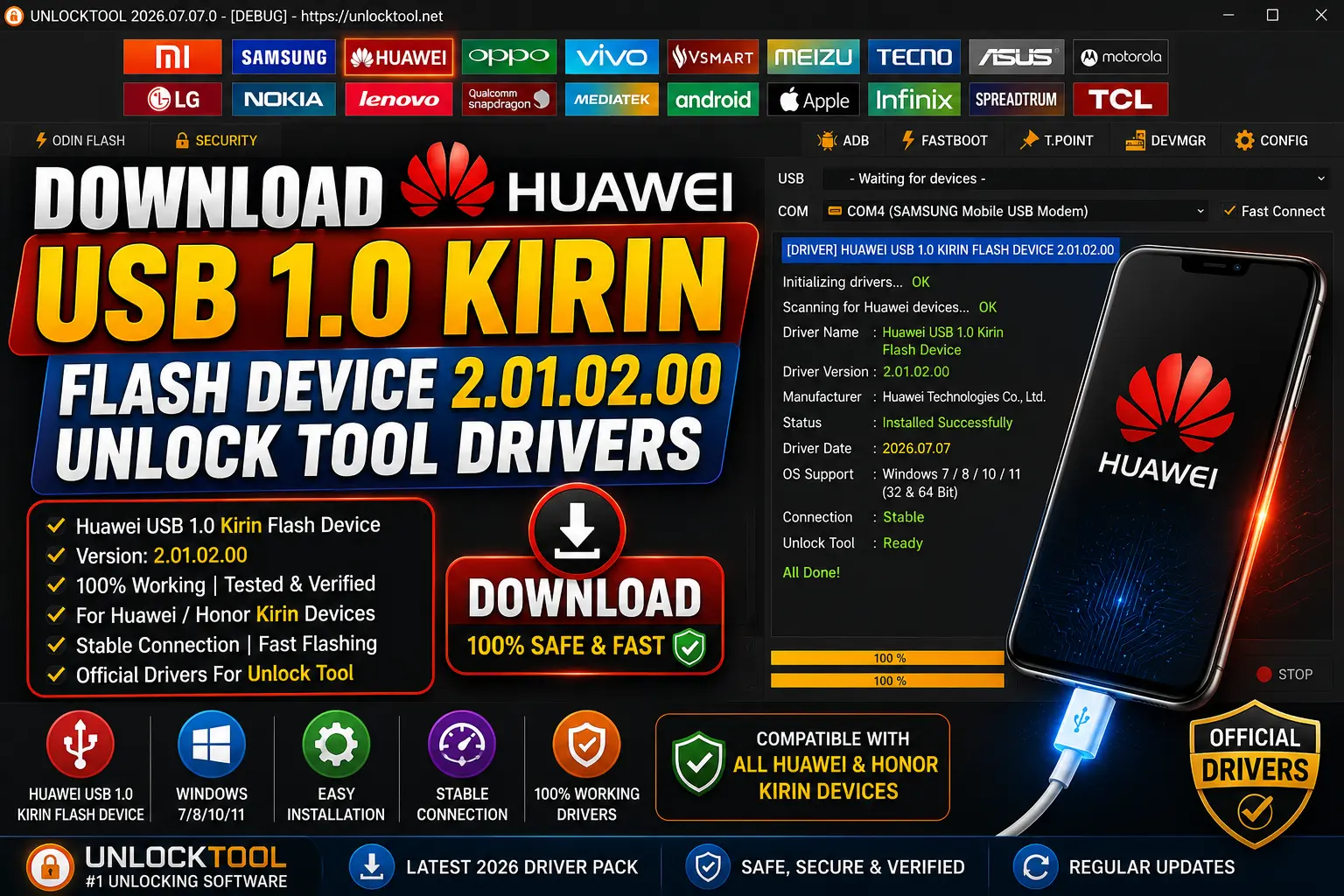
Here’s the direct access point for the Download Huawei USB 1.0 Kirin Flash Device 2.01.02.00 Unlock Tool Drivers file. This is the same driver package covered earlier in the guide, so you don’t need to hunt around for a separate copy.
Save the driver file to a folder you’ll remember, unzip it, then run the setup file before connecting your phone in Flash Mode.
Before you install, a couple things worth checking. Make sure no other Huawei phone-management software is running in the background, since it can interfere with the port. And confirm you’re on a Windows 64-bit setup, since older 32-bit systems can be hit or miss with this kind of driver.
If you land on this page looking for other Kirin or Huawei-related files, the unlock tool downloads page keeps the related drivers and tools grouped together, so it’s worth a look before you go searching elsewhere.
How to install Huawei Honor COM 1.0 driver
Installing the driver for Download Huawei USB 1.0 Kirin Flash Device 2.01.02.00 Unlock Tool Drivers isn’t complicated, but the order you do things in actually matters. Follow these steps in order and you’ll avoid the usual “device not recognized” problem.
Grab the driver file from the download section above and unzip it to a folder you can find easily, like your desktop.
Right-click the setup file and choose “Run as administrator.” This step gets skipped a lot, and it’s usually why installs fail.
Once the driver’s installed, put your Kirin-based Huawei phone into Flash Mode and connect it to your PC with a USB cable.
Open Device Manager and look under “Ports (COM & LPT).” If your phone shows up as a COM port with no yellow warning icon, the driver’s working right.
If Windows still shows an unknown device, unplug the phone, restart your PC, and try step 2 again before doing anything else.
Download and update Windows drivers
Keeping your USB drivers current matters just as much as installing them the first time. If you’ve had the Download Huawei USB 1.0 Kirin Flash Device 2.01.02.00 Unlock Tool Drivers installed for a while and you’re suddenly seeing connection drops or COM port errors, an outdated or corrupted driver is usually the reason.
🔥 Recommended Success Reports

If you’re not sure whether your current driver is up to date, the safest move is to uninstall the old one from Device Manager first, then reinstall it fresh.
And here’s my honest take: don’t rely on Windows Update to grab this one for you. Generic driver updates through Windows sometimes miss vendor-specific USB COM drivers like this, so getting it directly is a lot more reliable. Before you reinstall, unplug your phone and close any Huawei flashing software that might still have the port locked. For more driver files tied to your device, the unlock tool drivers section is a good place to check first.
HUAWEI USB COM 1.0 (COM6) Driver for Dell – Latitude 5420 working on Microsoft Windows 11 Pro
You’ll see setups like this come up a lot in Huawei repair forums: a Dell Latitude 5420 running Windows 11 Pro, with the Huawei USB COM driver installed and the phone landing on COM6 in Device Manager. It’s a good example of what a working setup should look like once the Download Huawei USB 1.0 Kirin Flash Device 2.01.02.00 Unlock Tool Drivers install goes right.
The COM port number itself doesn’t really matter. Some machines assign COM3, others land on COM6 or higher depending on what other devices have used ports before. What matters is that the port shows up under “Ports (COM & LPT)” without an error icon next to it.
Windows 11 Pro laptops from Dell, HP, or Lenovo generally handle this driver fine, but we haven’t tested every laptop model, so treat any single machine as an example, not a guarantee.
If your setup looks different from this example, don’t panic. As long as the phone shows up under a COM port with no yellow warning triangle, you’re good to move on to flashing.
Compatibility:
Before you run the Download Huawei USB 1.0 Kirin Flash Device 2.01.02.00 Unlock Tool Drivers installer, it helps to know what it’s actually built for. This driver targets Huawei phones and tablets running on Kirin chipsets, and it’s made for Windows PCs, not Mac or Linux machines.
Device Type
Huawei Kirin-chipset phones and tablets
Operating System
Windows PC (64-bit recommended)
Connection Mode
USB, Flash Mode
I’d lean toward keeping expectations realistic here. Just because a phone runs on a Kirin chipset doesn’t guarantee it’ll behave identically to every other Kirin device, so if something doesn’t work as expected on your exact model, that’s worth troubleshooting rather than assuming the driver is broken. For more compatible drivers and unlock resources, check the full driver collection.
Disable Driver Signature
Sometimes Windows blocks the Download Huawei USB 1.0 Kirin Flash Device 2.01.02.00 Unlock Tool Drivers install with a driver signature warning. This mostly shows up on newer Windows 10 and 11 builds that have stricter security settings turned on by default. If that happens to you, here’s how to get past it.
Go to Settings, then Update & Security, then Recovery, and click “Restart now” under Advanced startup.
Choose Troubleshoot, then Advanced options, then Startup Settings, and click Restart.
Once your PC restarts, press the number key for “Disable driver signature enforcement” on the list.
After Windows restarts, run the driver installer again. It should go through without the warning this time.
This setting only lasts until your next restart, so you’ll need to repeat these steps if you reboot before finishing the install.
Key Takeaways
-
The Download Huawei USB 1.0 Kirin Flash Device 2.01.02.00 Unlock Tool Drivers package fixes the “unknown device” problem when your phone’s in Flash Mode. -
It’s built for Kirin-chipset Huawei phones and tablets running on a Windows PC, not Mac or Linux. -
Always run the installer as administrator, and unzip the file before installing it. -
If Windows blocks the install, disabling driver signature enforcement gets you past it, but only until your next restart. -
A working install shows your phone under “Ports (COM & LPT)” in Device Manager with no warning icon. -
More Kirin-related drivers and tools are available on the unlock tool downloads page.
Frequently Asked Questions
What does the Download Huawei USB 1.0 Kirin Flash Device 2.01.02.00 Unlock Tool Drivers package actually do?
It installs a USB COM driver so Windows can properly detect your Huawei Kirin-based phone while it’s in Flash Mode. Without it, your PC usually shows the phone as an unknown device or doesn’t see it at all.
Does this driver work with all Huawei phones?
It’s built specifically for Huawei devices with Kirin chipsets. If your phone uses a different chipset, this particular driver may not detect it correctly.
Can I use this driver on Windows 11?
Yes, it works on modern 64-bit Windows systems, including Windows 11 Pro. Just make sure you run the installer as administrator for the best results.
Why does Windows show a security warning during install?
Some Windows security settings block unsigned drivers by default. If that happens, disabling driver signature enforcement temporarily usually clears the install path.
How do I know if the driver installed correctly?
Open Device Manager and check under “Ports (COM & LPT).” If your phone shows up there with no yellow warning icon, the install worked.
Will this driver erase data on my phone?
No. Installing the USB driver itself doesn’t touch your phone’s data. It just sets up the connection between your phone and PC for later flashing or repair tasks.
Is this driver free to download?
Yes, the driver file is available at no cost through the download links provided in this guide.
Why does my phone keep disconnecting during flashing?
This is often caused by a loose USB cable, a bad port, or a driver conflict with other phone-management software running in the background. Try a different cable or USB port first.
Do I need to uninstall old Huawei drivers before installing this one?
If you’re getting connection errors with an existing driver, it’s usually safer to remove the old one from Device Manager first, then install a fresh copy.
Is it legal to use this unlock tool driver?
You should only use this driver on a device you own or have clear authorization to work on. It’s meant for supported repair and firmware tasks, not for bypassing security on a phone that isn’t yours.
Will this driver work on a 32-bit version of Windows?
It’s built with 64-bit Windows systems in mind. Older 32-bit setups may not behave the same way, so a 64-bit PC is the safer bet.
Final Thoughts
Getting your Kirin-based Huawei phone talking to Windows really comes down to one small file. The Download Huawei USB 1.0 Kirin Flash Device 2.01.02.00 Unlock Tool Drivers guide above covers everything from grabbing the file to fixing the signature warning that trips up a lot of first-time installs.
And honestly, once this driver’s installed right, the rest of your flashing or repair work goes a lot smoother. Most of the connection headaches people run into with Huawei phones trace back to a missing or outdated USB driver, not the flashing tool itself.
Ready to get your phone connected? Head over to the unlock tool drivers page to grab the driver and any other Kirin-related files you might need for your setup.
Disclaimer
This guide on the Download Huawei USB 1.0 Kirin Flash Device 2.01.02.00 Unlock Tool Drivers is meant for lawful servicing of a device you personally own or have clear authorization to repair. Please don’t use it on any phone that isn’t yours without permission.
Driver behavior and results can vary by phone model, firmware version, Windows build, and tool version, so your experience may differ from what’s described here. Back up your data before doing any repair or flashing work whenever that’s possible.
Always follow the terms set by the original software provider when using any driver or unlock tool. This site isn’t responsible for data loss, device damage, misuse, or actions taken by third-party tools or services. Use good judgment, and if you’re ever unsure about a step, it’s worth double-checking before you proceed.