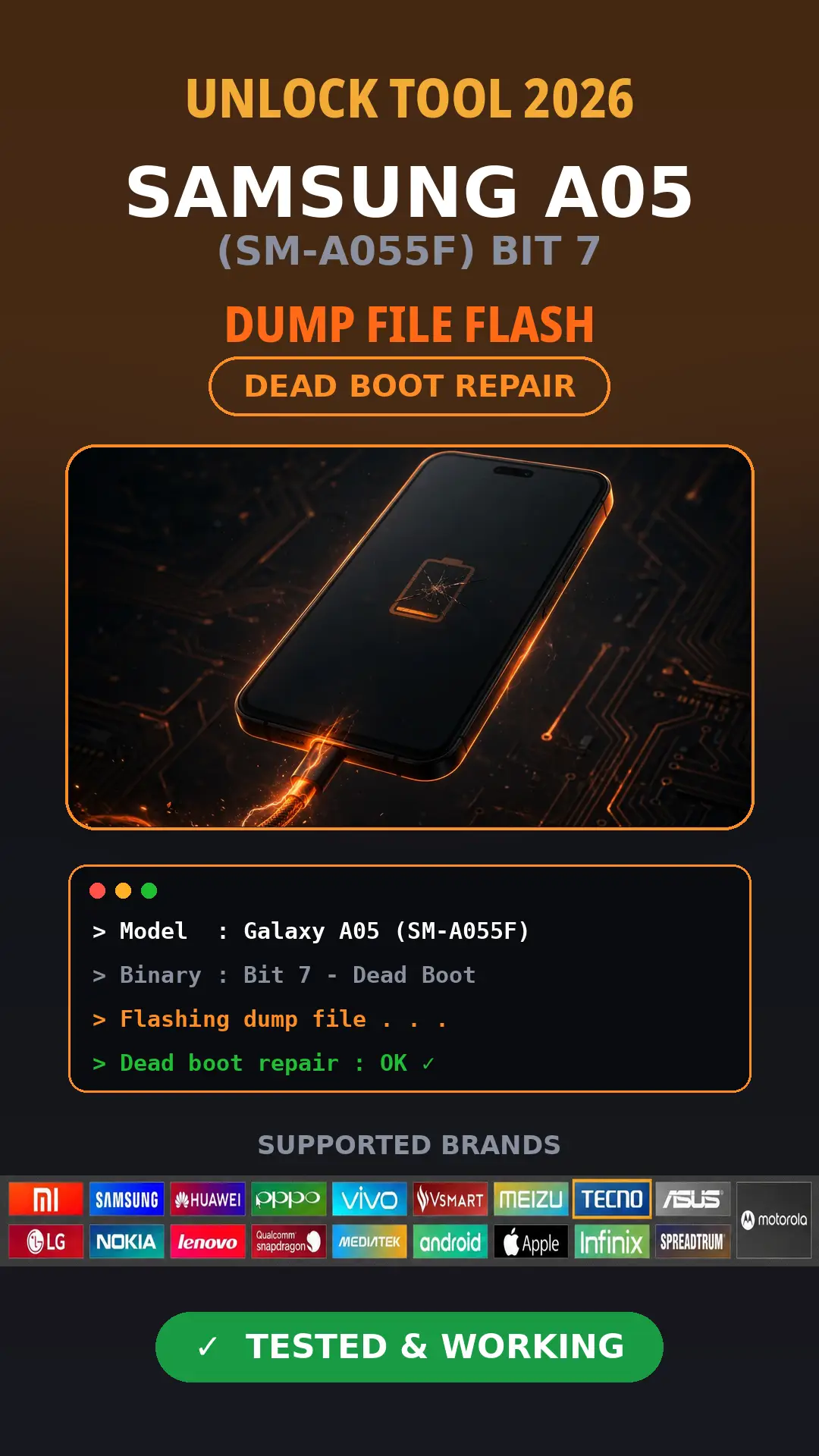
Unlock Tool 2026 – Samsung A05 SM-A055F Dump File | Bit 7 Dead Boot Repair
If your Samsung Galaxy A05 (SM-A055F) went dead after flashing, you need the Samsung A05 SM-A055F full dump; this guide is for you. I mean the hard-bricked kind: not turning on, stuck on a black screen, or only showing up as an MTK USB port on your PC. A full dump file flash with Unlock Tool 2026 can bring a Bit 7 A055F back to life in most of these cases. Below, I’ve covered what causes the dead boot, how to check your binary version, where to get the tested dump file, and the exact flashing steps. Just follow them in order, and don’t skip the binary check. That’s the step most people get wrong.
Before Writing The Dump File: Confirm Your Device’s Bit Version
I’ve lost count of how many dead A05s came to me for exactly this reason. Someone’s in a hurry, the customer is waiting at the counter, and they flash the first file they find without checking the bit version. The phone goes dead in their hands. I’ve done it myself in my early days, so I know exactly how it happens.
Here’s the rule Samsung never lets you break: the bit can only go up, never down. If your Galaxy A05 is on Bit 7 and you flash a Bit 6 file, it won’t just fail. It can kill the phone outright, throw it into a reboot loop, or leave it stuck in Download Mode. Corrupt the preloader, and it only shows up as an MTK USB port. That’s when a full dump or scatter file becomes your only way back.
Checking takes ten seconds. Power the phone off, hold both volume buttons, and plug in the USB cable to enter Download Mode. You’ll see a string like A055FXXU7. The number after the U is your bit version. In this guide, we’re working with Bit 7, so make sure the dead boot repair file below is Bit 7 too. Never mix them.
Two Ways to Repair a Dead-Boot SM-A055F (Bit 7):
If a Galaxy A055F dies on you, or another client brings you one in a dead state and you have to fix it, you have two methods to repair it.
Flash With Unlock Tool Via USB
This is the most commonly used method, and most dead-boot Samsung devices get repaired with it. Unlock Tool can write the dump file and flash the scatter file on MTK BROM and in test point mode. This is the method that fixes most dead-boot Samsung phones. Unlock Tool writes the full dump file over MTK BROM, and if the phone won’t connect that way, it also works in test point mode. It can even flash Samsung’s 4-part repair firmware from Download Mode when needed.
Flash With Easy JTAG eMMC
This method is rarely used. When a Samsung device is in really bad shape and doesn’t show up over USB, you open the device, find the hardware ISP pinout, and use Easy JTAG or any other eMMC repair tool to write a dump recovery file to its eMMC, which gets the device to turn on.
Important: Flashing Wipes All Data — Warn Your Client First
If a client brings in a Samsung A055F that’s still turning on and wants it flashed, you must confirm with them first that the device’s data gets wiped after flashing. If the client has important data, they should save it beforehand so there are no problems later. If the device comes to you in a dead state, tell the client as well that after the dead boot is recovered, the Samsung Galaxy A055F will lose all its data, because writing the dump wipes the data from it.
What you need to write the Samsung A055F Dump Firmware
A Windows PC, the SM-A055F Bit 7 dump firmware from the top of this post, Unlock Tool 2026, MediaTek USB drivers installed, a good USB cable, and a charged battery.
Advertisement
How to Write Dump File Samsung SM-A055F Bit 7 With Unlock Tool Via USB
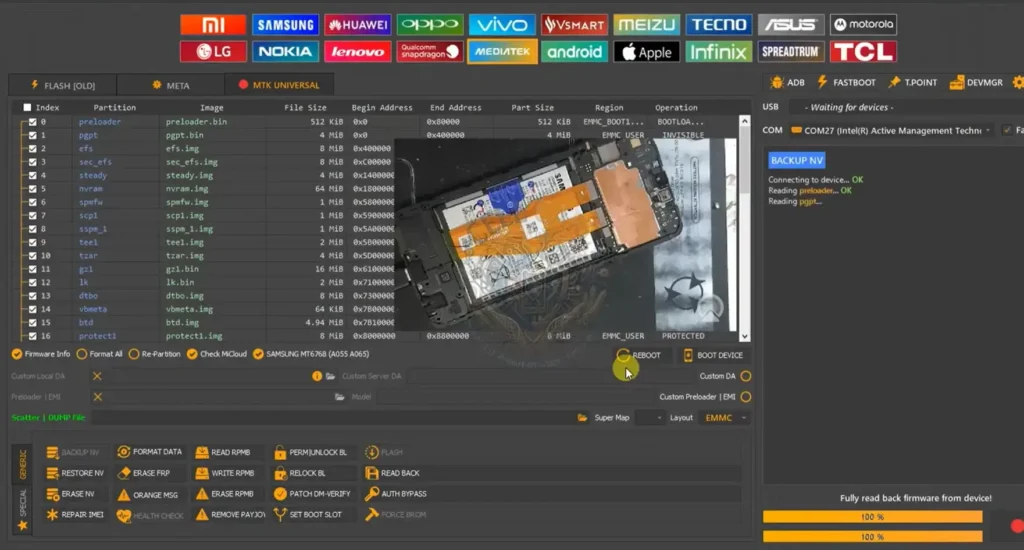
At the top of this post, the Samsung Galaxy A05 SM-A055F U7 (bit 7) full dump repair file is uploaded, with no password. Click the download link to download it, then extract it. After that, open Unlock Tool, go to the MTK Universal tab, load the dump file, and click Flash.
Then open the back cover of the device and connect it to the USB cable in preloader mode using the test point. [ If brome mode not detect use test point ] The dump writing will start, and within a few minutes the dump will finish writing, and the device will turn on. Sometimes, even after writing the dump repair file, the device keeps rebooting on the logo. In that case, you’ll have to unlock the bootloader of the Samsung Galaxy A05 through the test point. After unlocking the BL, put the phone in download mode and flash it with the official 4-part repair files, and your device will turn on safely. You’ll just have to set it up.
FAQ
What is the ISP pinout for the Samsung A055F?
The ISP pinout is the set of hardware points on the Samsung A055F that you connect to an eMMC tool adapter, so you can write the dump to the eMMC with a JTAG tool.
How do I wipe a Samsung A05 with a PC?
To wipe a Samsung A055F, you need a PC. Turn the A055F off, plug in the USB cable, and hold the power and Vol+ keys. As soon as the Samsung logo appears, release the power key and keep holding Vol+, and it will go into Recovery mode. From there, you can wipe the data.
Can I use this full dump on the Galaxy M05 (SM-M055F)?
The M05 is the A05’s sibling on the same platform, but don’t flash this file on it unless the hardware and bit version match. When in doubt, use a dump made for the M055F.
What happens if I flash the wrong binary version?
If you flash the wrong binary version, your phone will end up rebooting, stuck on the logo, in dead mode, or with a black screen that only shows up on the MTK port.
Advertisement
Final Talk :
That’s the full process. Match the bit, flash the dump, and the A05 comes back. If you get stuck on any step, leave a comment with your exact error.