
Introduction:
If you’re dealing with a Samsung A05 SM-A055F Dump File Unlock Tool Bit 7 situation, you’re probably staring at a phone that won’t boot past a black screen or only shows up as an MTK USB port. That’s a rough spot to be in, but it’s fixable. In this guide, we’ll walk through how to grab the Bit 7 dump file for the SM-A055F and write it back to the device using Unlock Tool, step by step.
This kind of dead brick usually happens after a rooting attempt or bootloader unlock goes sideways, and a wrong file gets flashed to a partition that really didn’t want it. We’ll cover the dump file write process, the Test Point steps, and what to do afterward so your A05 boots clean again. You can also grab the tool itself and other repair files over at Unlock Tool’s download page if you don’t have it installed yet.
Key Takeaways
- The Samsung A05 SM-A055F Dump File Unlock Tool Bit 7 method is meant for dead-boot A055F units stuck on a black screen or showing up only as an MTK USB port.
- This dump file works only on Bit 7 boards. It won’t write correctly on higher bit versions, so double-check your board before you start.
- You’ll need Unlock Tool, the Test Point connection, and Odin3 ready to flash the original AP, BL, CP, and CSC firmware after the dump write.
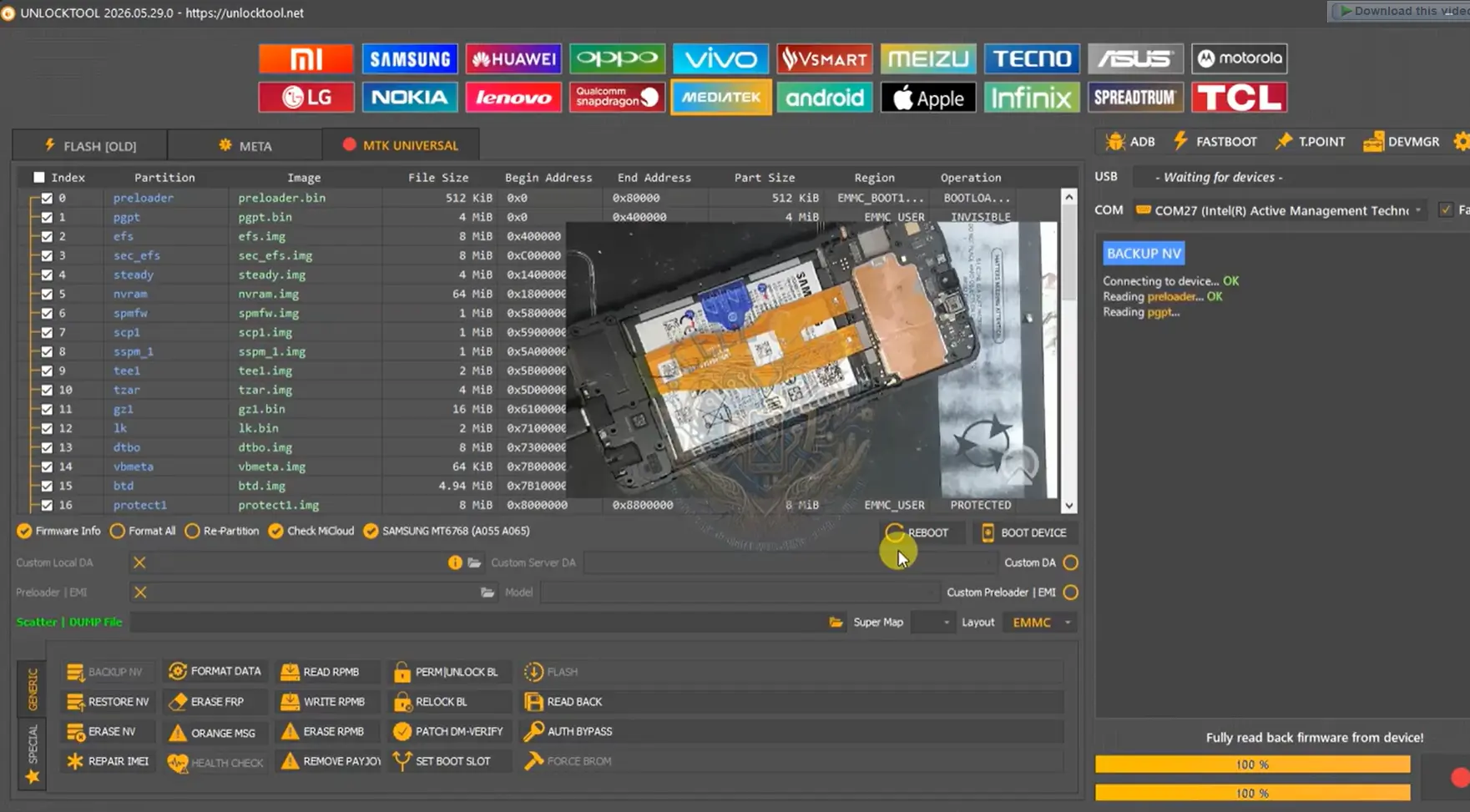
- The scatter dump gets loaded in the MTK Universal section of Unlock Tool, and the Test Point is what gets the phone talking again.
- If IMEI comes back Null afterward, that’s a separate repair step using Chimera or Z3X Box, not a sign the dump write failed.
- Done right, your A05 should boot normally again once the original firmware is flashed back on.
Download and Access the Required Tool
Before you start the Samsung A05 SM-A055F Dump File Unlock Tool Bit 7 process, you’ll need two things ready: Unlock Tool installed on your PC and the Bit 7 dump file itself. The dump file comes as a ZIP, so extract it somewhere easy to find before you open Unlock Tool.
Get the Dump File
If you don’t have Unlock Tool installed yet, you can grab it from the Unlock Tool download page first. And double check your device really is a Bit 7 board before you flash anything — this dump file won’t work right on higher bit versions, and there’s no shortcut around that.
What You Need Before You Start
- A Windows PC with Unlock Tool installed and ready to run the MTK Universal module.
- The Samsung A05 SM-A055F Dump File Unlock Tool Bit 7 package downloaded and extracted from the ZIP.
- A good quality USB cable — cheap cables cause dropped connections mid-flash, and that’s the last thing you want here.
- Odin3 Tool ready on the same PC, plus the original 4-file firmware (AP, BL, CP, CSC) for the A055F.
- Confirmation your board is Bit 7. This dump file is not built for higher bit versions.
- A steady power source for the phone during the Test Point connection, since interruptions mid-write can cause more problems.
- Chimera or Z3X Box on standby, just in case the IMEI needs repairing after the dump write.
Step-by-Step Instructions
Here’s the full walkthrough for the Samsung A05 SM-A055F Dump File Unlock Tool Bit 7 write. Follow these in order and don’t skip the Test Point step.
This Bit 7 dump only fits Bit 7 boards. Flashing it on a different bit version can cause more damage, not less.
Common Problems and Fixes
| Problem | Likely Cause | What To Do |
|---|---|---|
| Phone keeps rebooting after flashing | Bootloader still locked during the write | Reconnect with the Test Point and unlock the bootloader before trying again |
| Phone stuck as MTK USB port only | This is normal for a dead A055F before the Test Point connection | Continue with the Test Point step in Unlock Tool as outlined above |
| IMEI shows as Null after flashing | Baseband data wasn’t restored during the firmware flash | Root again with the Test Point, then repair IMEI using Chimera or Z3X Box |
| Dump file won’t write correctly | Board is not actually Bit 7 | Stop and confirm your bit version before trying again on different hardware |
In my experience, most Samsung A05 SM-A055F Dump File Unlock Tool Bit 7 hiccups come down to skipping a Test Point reconnect somewhere in the middle. It’s tempting to rush through, but this device needs that step done right, or you’ll just be back at square one.
Important Safety and Accuracy Notes
The Samsung A05 SM-A055F Dump File Unlock Tool Bit 7 write is a repair method for a specific dead-board condition. It’s not a general rooting shortcut, and it only applies when your board matches Bit 7.
Flashing the wrong bit version dump can make a bricked phone harder to recover, not easier. If you’re not sure what bit your board is, hold off before writing anything.
Reboot loops and a Null IMEI after flashing are common and usually fixable — they’re not signs the process failed completely, just steps still left to finish.
And you should only run this on a device you own or have clear permission to repair. Unlock Tool and dump file writes are meant for legitimate device repair, not for bypassing security on a phone that isn’t yours.
🔥 Recommended Success Reports
 Download Unlock Tool 2026: Official Setup & Latest Security Updates✔
- Oppo F7 CPH1819 Flash Dump File — Complete Firmware Repair Guide✔
- Redmi 10 Prime (Elene) Dead Boot Repair & Full Dump File Flash – Unlock Tool 2026✔
- Realme C55 RMX3710 Full Dump File [Dead Boot Repair] [By UnlockTool] [RMX3710_14.0.0.2000(EX01)]✔

Frequently Asked Questions
What is the Samsung A05 SM-A055F Dump File Unlock Tool Bit 7 used for?
It’s used to restore a dead SM-A055F back to a working state when the device shows a black screen or only appears as an MTK USB port. The dump file gets written using Unlock Tool to bring the phone back to a flashable condition.
Will this dump file work on any A055F board?
No. This file is only made for Bit 7 boards. It won’t write correctly on higher bit versions, so confirm your board type before flashing anything.
Why does the A05 keep rebooting after I flash the dump file?
Reboot loops usually mean the bootloader still needs to be unlocked. Reconnect using the Test Point and unlock the bootloader before continuing to the firmware flash.
Does this method erase personal data on the phone?
Yes. A dump file write and firmware flash typically wipes the device, since it’s rewriting core partitions. This is a repair method, not a data-safe process.
Can I use a phone charging cable instead of a real USB data cable?
Stick with a proper USB data cable. Cheap charge-only cables can drop the connection mid-flash, which risks leaving the write incomplete.
Why is my A055F not detected in Unlock Tool at all?
If the device isn’t detected, the Test Point connection likely wasn’t made correctly. Recheck the contact points and try the connection again before starting the dump write.
How long does the dump file write usually take?
The write itself is typically a fairly quick process, but the full repair — including bootloader unlock and the follow-up Odin3 firmware flash — takes longer since it’s a multi-step process.
Is it legal to use Unlock Tool on my own Samsung A05?
Yes, repairing a device you own or have permission to work on is legal. This process is meant for legitimate repair, not for bypassing security on someone else’s phone.
What do I do if IMEI shows Null after the repair?
Root the device again using the Test Point, then repair the original IMEI using Chimera or Z3X Box. This is a normal follow-up step, not a sign the process failed.
Do I still need Odin3 if I already used Unlock Tool?
Yes. Unlock Tool handles the dump write and bootloader unlock, but Odin3 is what you use afterward to flash the original AP, BL, CP, and CSC firmware files.
Can this method fix a phone bricked from a security patch update?
If the brick matches the black screen or MTK USB port symptoms described here, this method is built to address that. Results can still depend on the exact condition of your board.
Final Thoughts
Follow the steps in order, get the bootloader unlocked, and flash the original firmware back with Odin3, and your A05 should boot like normal again.
A dead Samsung A05 SM-A055F is frustrating, but it’s usually not as bad as it looks. Once you’ve confirmed your board is Bit 7, the Samsung A05 SM-A055F Dump File Unlock Tool Bit 7 process gives you a clear path from a black screen back to a working phone. Just take the Test Point steps seriously and don’t rush the firmware flash at the end.
And if IMEI comes back Null, that’s a separate fix, not a dead end. If you haven’t grabbed the tool yet, you can pick it up at Unlock Tool’s site and get started whenever you’re ready.
Disclaimer
This guide on the Samsung A05 SM-A055F Dump File Unlock Tool Bit 7 process is meant for lawful servicing of a device you own or are authorized to repair. It’s not intended for use on devices without the owner’s permission.
Results, compatibility, and available features can vary by model, firmware version, region, and tool version. Back up any data you can before starting, since this kind of repair process can result in data loss.
Follow the terms set by Unlock Tool’s software provider when using it. This site isn’t responsible for data loss, device damage, misuse of the tool, or actions taken by third parties. Use good judgment, work carefully through each step, and only proceed on hardware you’re authorized to work on.