
Introduction:
If you’re trying to figure out Samsung Exynos Enable ADB In Download Mode, Remove FRP UnlockTool, you’re in the right spot. This guide walks you through the exact steps to enable ADB on a Samsung Exynos device while it’s sitting in Download Mode, and then use that ADB connection to knock out an FRP lock in just a couple of clicks.
UnlockTool is one of the go-to programs in the Android unlocking world right now, mostly because it covers so many devices and handles FRP removal without a ton of extra hassle. And if you already have an active license, this whole process only takes a few minutes from start to finish.
Below we’ll cover picking the right CPU chip, getting your phone into Download Mode, enabling ADB through the Exynos section, and finally clearing the FRP lock. You can grab the latest UnlockTool setup before you get started so everything is ready to go.
Key Takeaways
- Method: You’ll enable ADB on a Samsung Exynos device while it’s in Download Mode, then use that ADB link to remove the FRP lock.
- Tool needed: UnlockTool with an active license is required to run the Exynos ADB and FRP options.
- Requirement: You need to know your device’s exact CPU chip model before you pick it in the Exynos chip section.
- Setup: A USB cable and a computer with UnlockTool installed are needed to connect the phone in Download Mode.
- Caution: Picking the wrong CPU chip for your Samsung Exynos model can cause the process to fail, so double check it first.
- Result: Once ADB is enabled, removing the FRP lock only takes one more click inside UnlockTool.
Download and Access the Required Tool
Before you can enable ADB on a Samsung Exynos device in Download Mode, you need UnlockTool installed on your Windows computer, plus a license that’s active. The program is what handles the Exynos chip selection, the ADB enable step, and the FRP removal itself, so it’s worth grabbing the current setup file before you start anything else.
Once you download it, install it like any normal desktop program and open it up. Check that your license shows as active inside the tool before you plug your phone in — that’s the part people skip, and then wonder why the Exynos options won’t run. And make sure you’re using a real USB data cable, since a charge-only cable won’t let the tool see your device.
What You Need Before You Start
Before you enable ADB on a Samsung Exynos device in Download Mode, get these basics sorted first. Missing any one of them is the usual reason this process stalls halfway through.
- UnlockTool with an active license installed on a Windows PC.
- Your Samsung device’s exact CPU chip model. Search your phone’s name plus “cpu model” online if you’re not sure.
- A working USB data cable, not a charge-only one.
- A charged phone battery, ideally above 50%, so it doesn’t die mid-process.
- Correct Samsung USB drivers installed on your computer so Download Mode gets recognized.
And one thing worth saying plainly: only run FRP removal on a device you own or have clear permission to work on. UnlockTool is built for legitimate repair and unlocking use, not for bypassing security on someone else’s phone.
Step-by-Step Instructions
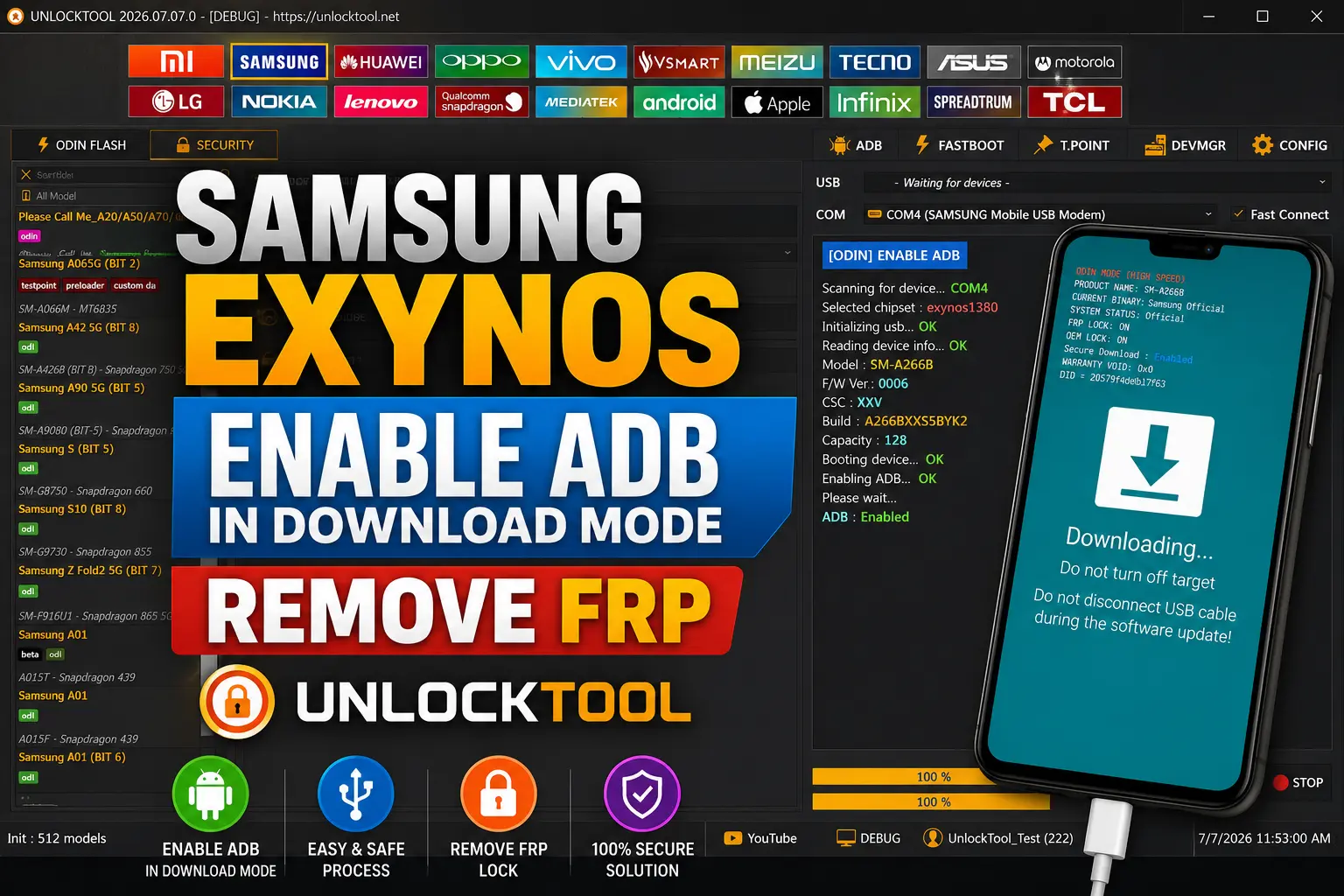
Here’s the actual walkthrough for Samsung Exynos Enable ADB In Download Mode, Remove FRP UnlockTool. Follow these in order and don’t skip the chip selection step — that one trips up more people than anything else.
Open UnlockTool on your computer and make sure your license shows as active.
Go to the Samsung section inside the tool, then click the Exynos tab.
In the Chip section, select your device’s exact CPU model. If you don’t know it, search your phone’s name plus “cpu model” online and use whatever the first result shows.
Boot your phone into Download Mode and connect it to your computer with a USB data cable.
In the Exynos (Odin) section, click Enable ADB. The device will reboot on its own, and ADB will be active once it comes back on.
Once ADB is enabled, click Remove FRP under the ADB section. That second click clears the FRP lock.
Note: Don’t unplug the cable or close UnlockTool while the device is rebooting after Enable ADB — let it finish on its own.
Common Problems and Fixes
Even with a clean workflow, things can go sideways when you try to enable ADB on a Samsung Exynos device in Download Mode. Here are the issues that come up most and what tends to fix them.
Device not detected in UnlockTool. This is almost always a driver or cable problem. Reinstall the Samsung USB drivers and swap to a different USB port or cable before trying anything else.
Wrong CPU chip selected. If the Exynos chip doesn’t match your exact device model, the ADB enable step can fail or just do nothing. Double-check the chip name before you click anything.
Phone stuck after reboot. If it doesn’t come back on after the Enable ADB step, hold the power and volume down buttons for about 10 seconds to force a restart, then check if it landed back in Download Mode.
🔥 Recommended Success Reports

Remove FRP button grayed out. That usually means ADB isn’t actually enabled yet. Give the device a few extra seconds after reboot before clicking it.
And honestly, most failed attempts I’ve seen written about online come down to rushing the chip selection step. Slow down there and the rest usually goes fine.
Important Safety and Accuracy Notes
Working through Samsung Exynos Enable ADB In Download Mode, Remove FRP UnlockTool steps is generally a low-risk process, but there are a few things worth keeping in mind so it goes smoothly.
Selecting the correct CPU chip in the Exynos section matters. If you’re not sure which chip your device uses, take the extra minute to look it up instead of guessing. Picking the wrong one is a normal, fixable mistake — it just means the ADB enable step won’t work right, and you can go back and reselect the correct chip.
A device that reboots and comes back up normally after the Enable ADB step is expected behavior, not a problem. A device that stays on a black screen for several minutes with no response is a sign to stop and let it sit before trying anything else, rather than repeatedly clicking buttons or unplugging the cable.
FRP removal should only be done on a phone you own or have permission to service. This keeps the process on solid legal footing and matches how UnlockTool is meant to be used for legitimate repair work.
Frequently Asked Questions
What does Samsung Exynos Enable ADB In Download Mode, Remove FRP UnlockTool actually do?
It’s a two-part process inside UnlockTool that turns on ADB access while your Samsung Exynos phone is in Download Mode, then uses that connection to remove an FRP lock. Once ADB is enabled, clearing FRP only takes one more click.
Do I need a license to use UnlockTool for this?
Yes. The Exynos ADB and FRP removal options require an active UnlockTool license before you can run them. Without one, the Samsung Exynos section won’t let you proceed past chip selection.
How do I find my Samsung phone’s Exynos CPU model?
Search your device’s exact name plus “cpu model” online. The first result usually lists the chip name, which you then select in UnlockTool’s Chip section under the Exynos tab.
Why isn’t my device showing up in UnlockTool?
This is almost always a driver or cable issue. Reinstall your Samsung USB drivers, try a different USB port, and make sure you’re using a data cable, not a charge-only one.
Is enabling ADB in Download Mode safe for my phone?
Yes, it’s a standard part of the workflow. Your device will reboot on its own after you click Enable ADB, and ADB becomes active once it powers back on normally.
Will this process erase data on my phone?
The steps covered here focus on enabling ADB and removing FRP, not on wiping the device. Still, back up anything important beforehand since any Android service tool carries some general risk.
Can I use this method on any Samsung Exynos model?
UnlockTool supports many Samsung Exynos chip models through its Chip section, but exact support depends on your specific device and the tool’s current version. Check the chip list inside UnlockTool for your model before starting.
What happens if I pick the wrong CPU chip?
The Enable ADB step usually just won’t work correctly. It’s not permanent damage. Go back to the Chip section, select the correct model, and try again.
How long does the whole process take?
Once your device is connected and the correct chip is selected, enabling ADB and removing FRP usually takes just a few minutes total, including the automatic reboot.
Do I need internet access on the phone during this process?
No. The connection runs through the USB cable and UnlockTool on your computer, so the phone doesn’t need Wi-Fi or mobile data while it’s in Download Mode.
Is it legal to remove FRP with UnlockTool?
Removing FRP is fine on a device you own or have permission to service. UnlockTool is built for legitimate repair and unlocking work, so keep proof of ownership handy if you’re doing this for a client.
Final Thoughts
Once you’ve got the chip model right and your cable connected, Samsung Exynos Enable ADB In Download Mode, Remove FRP UnlockTool is honestly one of the more straightforward workflows in the app. It’s mostly about following the order: open the tool, pick the right Exynos chip, get into Download Mode, enable ADB, then clear FRP.
Most of the trouble people run into traces back to one of two things: a wrong chip selection or a driver issue on the computer side. Fix either of those and the rest tends to click into place fast.
If you haven’t grabbed UnlockTool yet, this is a good time to get it set up on your computer and check that your license is active before you plug your phone in.
Ready to get started?
Disclaimer
This guide on Samsung Exynos Enable ADB In Download Mode, Remove FRP UnlockTool is meant for lawful servicing of a device you own or are authorized to repair. Please confirm ownership or proper authorization before running any FRP removal or ADB steps on a phone.
Features, chip support, and results can vary by Samsung device model, firmware version, region, and the current UnlockTool version, so what works on one setup may behave differently on another. Back up your data where possible before starting, and follow UnlockTool’s own terms of use alongside any applicable local laws.
This site provides informational guidance only and isn’t responsible for data loss, device damage, misuse of this information, or actions taken by third parties using these steps. Use good judgment, work only on devices you’re authorized to service, and reach out to UnlockTool’s own support channels for tool-specific issues.