
Introduction:
This Tecno Spark 20C Remove FRP via Unlock Tool guide walks you through clearing the Google FRP lock on your Tecno Spark 20C using a computer and a USB cable. If you reset your phone and now can’t get past the Google sign-in screen, you’re not alone. This happens a lot after a factory reset, and it’s an easy fix once you have the right software.
We’ll show you exactly how Unlock Tool handles this job through its Tecno and Meta options, step by step, so you don’t have to guess what button to press next. And you won’t need any paid service to get it done.
Before you start, grab the software from our Unlock Tool download page, since you’ll need it installed on your PC before connecting the Spark 20C. Let’s get your phone unlocked.
Key Takeaways
- This Tecno Spark 20C Remove FRP via Unlock Tool method uses a PC and USB cable, not a manual or without-PC workaround.
- You’ll need Unlock Tool installed on your computer, a working USB cable, and the correct MTK USB drivers.
- The whole process runs through the Tecno tab and the Meta Erase FRP option, so there’s no guesswork on menus.
- Your phone needs to be fully powered off before you connect it. Skipping this step is the most common reason the tool won’t detect the device.
- Only use this on a device you actually own. FRP exists to protect owners, not to help someone bypass a phone that isn’t theirs.
- Once it’s done, you’ll skip Wi-Fi during setup and land right on the home screen, free of the Google FRP prompt.
Download and Access the Required Tool
Before you can start the Tecno Spark 20C Remove FRP via Unlock Tool process, you need two things on your computer: the Unlock Tool software itself and the right USB drivers. Skip the drivers and your PC just won’t see the phone when you plug it in.
Grab the software first. It installs like any normal Windows program, and you don’t need to change any settings to get the FRP feature working.
Once that’s installed, get the matching USB driver package so your Tecno Spark 20C connects properly when it’s powered off.
Check that both installs finished without errors before you move on. And make sure your USB cable is a good one. A cheap charging-only cable is a common reason the connection fails halfway through.
What You Need Before You Start
Before you jump into Tecno Spark 20C Remove FRP via Unlock Tool, take two minutes to check you’ve actually got everything ready. Missing one small item is usually why people get stuck halfway through.
| Item | Why You Need It |
|---|---|
| Windows PC or laptop | Unlock Tool runs on a computer, not on the phone itself |
| Unlock Tool software | Handles the Meta Erase FRP process for the Tecno Spark 20C |
| MTK USB drivers | Lets your PC recognize the phone while it’s powered off |
| Good quality USB cable | A weak or charge-only cable can break the connection mid-process |
| Fully charged phone | A dead battery can shut off the device during the erase step |
Once these are sorted, you’re ready to move into the actual FRP removal steps for your Tecno Spark 20C.
Step-by-Step Instructions
Here’s the full walkthrough for Tecno Spark 20C Remove FRP via Unlock Tool, laid out one action at a time. Take it slow on the first two steps, since those set up everything else.
Open Unlock Tool on your computer and let it fully load.
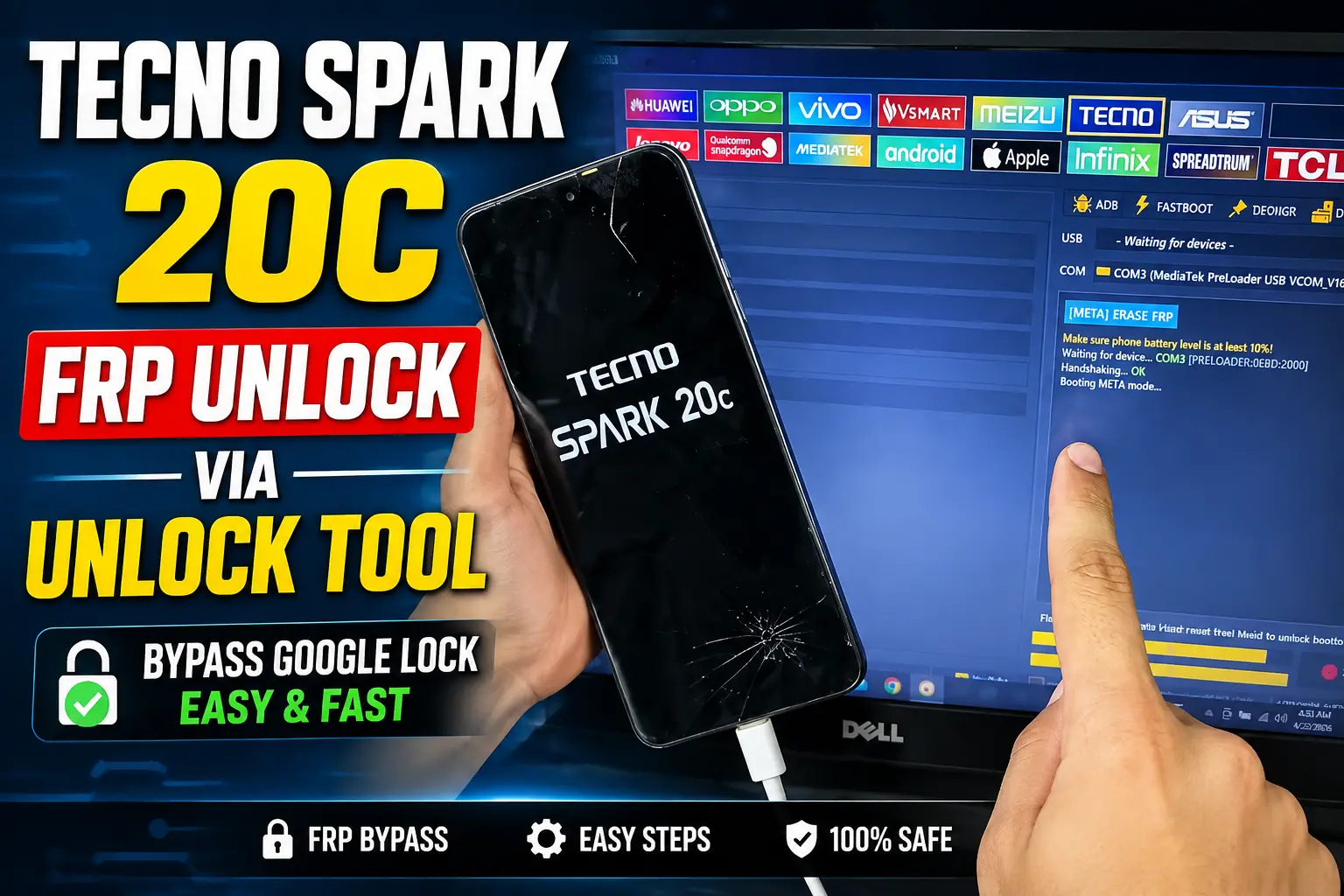
Click the Tecno tab, then open the Meta section inside it.
Select Meta Erase FRP. The tool will prompt you to connect a powered-off device.
Turn off your Tecno Spark 20C completely, then plug it into the PC without pressing any buttons.
Wait while Unlock Tool detects the phone and removes the FRP lock on its own. This part just needs patience.
Disconnect the phone once it’s done, then power it back on.
Skip Wi-Fi if it’s asked for during setup, then finish the rest of the setup wizard normally.
Your device should now boot straight to the home screen, no Google sign-in prompt blocking the way.
Common Problems and Fixes
Most issues with Tecno Spark 20C Remove FRP via Unlock Tool come down to connection or driver hiccups, not anything wrong with the FRP removal process itself. Here’s what usually goes sideways and how to fix it.
PC doesn’t detect the phone: This is almost always a driver problem. Double check the MTK USB drivers installed correctly, and try a different USB port on your computer.
Unlock Tool freezes mid-process: Give it a minute before assuming it’s stuck. But if it sits there for more than a few minutes with no progress, disconnect the phone, close and reopen Unlock Tool, then start the Meta Erase FRP step again from scratch.
Phone won’t stay powered off when connecting: Some cables trigger auto power-on. Swap to a known-good data cable and try again.
Device stuck on the boot logo after the process: Let it sit for a couple minutes first. If it’s still stuck, hold the power button to force a restart.
In my experience, cable quality causes more failed attempts than anything about the software itself. It’s worth ruling out first.
Important Safety and Accuracy Notes
Before you run this Tecno Spark 20C Remove FRP via Unlock Tool process, a few honest notes on what to expect and where the limits are. None of this is meant to scare you off, just to keep you informed.
Only use this method on a phone that actually belongs to you. FRP exists specifically to stop someone else from wiping and using a device that isn’t theirs, so this guide is meant for owners locked out of their own Tecno Spark 20C, not a way around that protection on a phone you found or bought without proof of ownership.
A slow detection step or a brief freeze during the Meta Erase FRP process is normal. Give it a moment before you assume something’s wrong. But if your phone won’t power on at all after several attempts, or it keeps rebooting into a boot loop, stop and don’t keep retrying blindly. At that point it’s worth checking your cable and drivers, or getting help from a repair shop that handles Tecno devices.
🔥 Recommended Success Reports
 FRP Unlock Tool Galaxy S7 Odin Download Mode Just 2 Click✔
- Remove Samsung FRP Android 16 Devices Via COM MTP Done By Unlock Tool 2026✔
- Download Unlock Tool 2026: Official Setup & Latest Security Updates✔
- Redmi 15C FRP Unlock Tool✔
- Remove FRP Unlock Tool 2026 – Samsung Exynos Enable ADB In Download Mode✔

And one more thing: this guide covers the standard PC-based method through Unlock Tool. It doesn’t cover manual bypass tricks or other tools, since those follow different steps entirely.
Frequently Asked Questions
What does FRP mean on the Tecno Spark 20C?
FRP stands for Factory Reset Protection. It’s a Google security feature that asks for the last signed-in Google account after a factory reset, so a stranger can’t just wipe and reuse your phone if it’s lost or stolen.
Can I use Unlock Tool to remove FRP without a computer?
No. This guide covers Tecno Spark 20C Remove FRP via Unlock Tool, which runs through a Windows PC connected by USB. Unlock Tool is desktop software, not a phone app, so a computer is required.
Why won’t Unlock Tool detect my Tecno Spark 20C?
Detection failures usually come from missing MTK USB drivers, a bad cable, or the phone not being fully powered off before you connect it. Check the drivers first, since that fixes most connection issues.
Does this method work on other Tecno Spark models?
This guide is written specifically for the Tecno Spark 20C using the Meta Erase FRP function in Unlock Tool. We haven’t confirmed the exact same steps for other Spark models, so don’t assume it carries over.
Will removing FRP delete my photos or apps?
This process targets the FRP lock itself, not your personal files. But since it follows a factory reset, most of your data would already be gone before you reach this step. Back up anything important beforehand when you can.
How long does the FRP removal process take?
Once Unlock Tool detects your powered-off Tecno Spark 20C, the Meta Erase FRP step usually finishes in under a minute. Detection itself can take a bit longer if drivers aren’t set up right.
Is it legal to remove FRP from my own phone?
Yes, removing FRP from a device you own is legal. This method is meant for people locked out of their own Tecno Spark 20C, not for bypassing security on a phone that belongs to someone else.
Is Unlock Tool free to use for this feature?
Unlock Tool supports a range of features across many phone models. Check the download page for current details on access, since pricing and available functions can change over time.
Can I skip Wi-Fi setup after removing FRP?
Yes. After the FRP lock is removed, skip the Wi-Fi prompt during setup if it appears, then finish the rest of the setup wizard normally to reach your home screen.
What USB cable works best for this process?
A standard, good-quality data cable works fine. Avoid cheap charge-only cables, since those often can’t handle the data connection Unlock Tool needs to detect your phone.
Final Thoughts
That’s the whole process for Tecno Spark 20C Remove FRP via Unlock Tool, start to finish. Once you’ve got the software installed and the right drivers in place, the actual FRP removal only takes a few minutes.
And honestly, the hardest part isn’t the software itself, it’s making sure your cable and drivers are solid before you start. Get those right and the Meta Erase FRP step does the heavy lifting for you.
If your Tecno Spark 20C is still asking for a Google account after your last reset, you now have everything you need to clear it and get back to your home screen.
Disclaimer
This guide on Tecno Spark 20C Remove FRP via Unlock Tool is written for lawful servicing of a device you own or are authorized to repair. It’s meant to help owners who are locked out of their own phone after a reset, not to bypass security on a device that isn’t theirs.
Features, compatibility, and results can vary by phone model, firmware version, region, or the current version of Unlock Tool itself. What works today may work a little differently after a software update. Back up your data whenever you can before starting any reset or repair process, and follow the software provider’s own terms of use while running Unlock Tool.
We put this guide together to be as accurate and useful as possible, but this site isn’t responsible for data loss, device damage, misuse of the software, or actions taken by third parties. Use good judgment, double check you’re the rightful owner of the device, and proceed at your own pace.