
Remove Samsung FRP
on Android 16 Devices
Getting locked out of your own Samsung phone because of a forgotten Google account is frustrating, especially after a factory reset or a firmware update. This guide walks you through how to remove Samsung FRP lock on supported Android 16 devices so you can get back into your phone without losing your mind over it. If you’re new to what this lock actually does, our Samsung Android 16 FRP Lock Explained guide covers the background in more detail. Whether you picked up a secondhand unit or just reset your own device, FRP (Factory Reset Protection) can stop you cold until it’s cleared properly.
Why FRP Removal Matters
FRP exists to stop thieves from wiping and reusing a stolen phone, but it also locks out legitimate owners who forget credentials or buy used devices with the lock still active. Clearing it restores normal access to your Samsung device.
Using the COM MTP Function
This walkthrough relies on the COM MTP function built into the Remove FRP Lock Unlock Tool. It communicates with the device over a dedicated COM port in MTP mode, which is what allows the tool to bypass the lock on newer Android 16 builds.
A Simple, Guided Workflow
You don’t need to be a firmware expert to follow along. Every step below is laid out in order, from connecting your device to confirming the FRP screen is gone, so you can move through the process without guesswork.
Confirm Ownership First
Before touching any unlock tool, make sure you’re the rightful owner of the device or have clear permission to work on it. FRP removal should only be performed on hardware you legally own or have been authorized to service.
Back Up Your Data
If you can still access any part of the device, back up photos, contacts, and files beforehand. Some FRP procedures can trigger a reset, and having a backup means nothing important gets left behind.
Overview of the
FRP Removal Process
Before jumping into the steps, it helps to know what you’re actually working with. This section breaks down what the guide covers, how the COM MTP function operates under the hood, and when this particular method makes sense for Samsung Android 16 devices.
What This Guide Covers
This walkthrough covers the full process to remove Samsung FRP on Android 16 devices using a dedicated COM MTP driver connection. You’ll get setup requirements, driver installation, tool configuration, and the exact click-by-click sequence needed to clear the lock screen.
What the COM MTP FRP Function Does
The COM MTP function inside the Remove FRP Lock Unlock Tool talks to the phone through a virtual COM port while it’s sitting in MTP mode, rather than through standard ADB or Download Mode. This lets the tool send low-level commands that bypass the Google account verification screen without needing a full firmware flash.
When to Use This Method
- Your Samsung device is running Android 16 and supports MTP-based communication. Check the Unlock Tool Supported Samsung Models list first.
- Standard FRP bypass tricks (dialer codes, Talkback exploits) no longer work on your build.
- You have USB drivers and the Unlock Tool ready, but no working Download Mode access.
- You need a method that avoids a full reflash and keeps existing firmware intact.
What You’ll Need
Before You Start
A little prep work goes a long way here. Before you attempt to remove Samsung FRP on your Android 16 device, make sure you have the right hardware, software, and a stable connection lined up. Skipping any of this is usually where things go sideways halfway through.
Required Hardware
- A Windows PC (Windows 10 or 11 recommended)
- Original or good-quality USB data cable, not a charge-only cable
- Your Samsung Android 16 device with the battery above 50 percent
Required Software
- Samsung USB drivers installed and working on your PC. Not sure how? See How to Install Samsung USB Drivers on Windows.
- The Unlock Tool with COM MTP FRP support enabled. New to the tool? Start with the Unlock Tool Installation Guide.
- Latest Windows updates to avoid driver conflicts
Internet Connection Requirement
Keep a stable internet connection running throughout the process. The Unlock Tool checks licensing and pulls device-specific data during the operation, so a dropped connection midway can interrupt the FRP removal and force you to restart the process.
Download Unlock Tool
Grab the latest version of the Remove FRP Lock Unlock Tool directly from the official source before you begin. Running an outdated build is one of the most common reasons the COM MTP function fails on newer Android 16 firmware. See what’s new in the Unlock Tool Latest Features (2026) release notes.
Preparation Steps
Before Running the Tool
With your hardware and software sorted, it’s time to get the device and PC talking to each other. These three steps get everything staged so the COM MTP FRP function has a clean connection to work with when you’re ready to remove Samsung FRP on your Android 16 device.
Connect the Samsung Device to Wi-Fi
Power on the device and connect it to a stable Wi-Fi network if the setup screen allows it. Not sure how to reach the Wi-Fi prompt during setup? Check How to Enable Wi-Fi During Samsung Setup Wizard. An active connection lets the phone communicate properly during the process and prevents the tool from stalling on account verification checks.
Connect the Device to the PC Using a USB Cable
Plug your Samsung device into the PC with a reliable data cable. Give it a few seconds for Windows to detect the connection and load the correct drivers before moving on. Avoid USB hubs, connect directly to a rear port if possible.
Launch Unlock Tool
Open the Unlock Tool on your PC and let it fully initialize. Confirm it detects the connected drivers correctly before selecting your device model, this sets the stage for the COM MTP FRP function in the next step.
Step-by-Step Samsung FRP
Removal Process
Here’s the full walkthrough to remove Samsung FRP on Android 16 devices using the COM MTP function. Follow each step in order, don’t skip ahead, and keep your device connected throughout the process for the best results.
Open Unlock Tool
Launch the Unlock Tool on your PC and let it fully load before doing anything else. Make sure you’re running the latest version so the COM MTP FRP function is available and up to date.
Connect the Samsung Device to the PC via USB Cable
Plug your Samsung device into the PC with a good quality data cable. Wait until Windows recognizes the connection and the correct drivers are loaded before proceeding to the next step.
Connect the Samsung Device to Wi-Fi
On the device itself, connect to an available Wi-Fi network. This keeps communication active between the phone and the Unlock Tool while the FRP function runs in the background.
Open the Samsung Tab in Unlock Tool
Inside the Unlock Tool interface, click over to the Samsung tab. This loads the model-specific options and functions built for Samsung devices running Android 16.
Navigate to the Functions Section
Once you’re in the Samsung tab, head into the Functions section. This is where all the available operations for your connected device are listed, including the FRP tools you need.
Click [COM] Remove FRP [2025]
Find and select the [COM] Remove FRP [2025] option from the Functions list. This triggers the COM MTP communication method specifically built to clear FRP on newer Samsung firmware.
Wait for Unlock Tool to Complete the FRP Removal
Let the process run without disconnecting the cable or closing the tool. Progress is shown in the log window, and the device may restart on its own once the FRP removal finishes. If it hangs or throws an error, check Common Unlock Tool Errors and Fixes.
Complete the Initial Device Setup Manually
Once the phone reboots, walk through the standard Android setup screens as you normally would. You should no longer be prompted for the old Google account, confirming the FRP lock has been cleared.
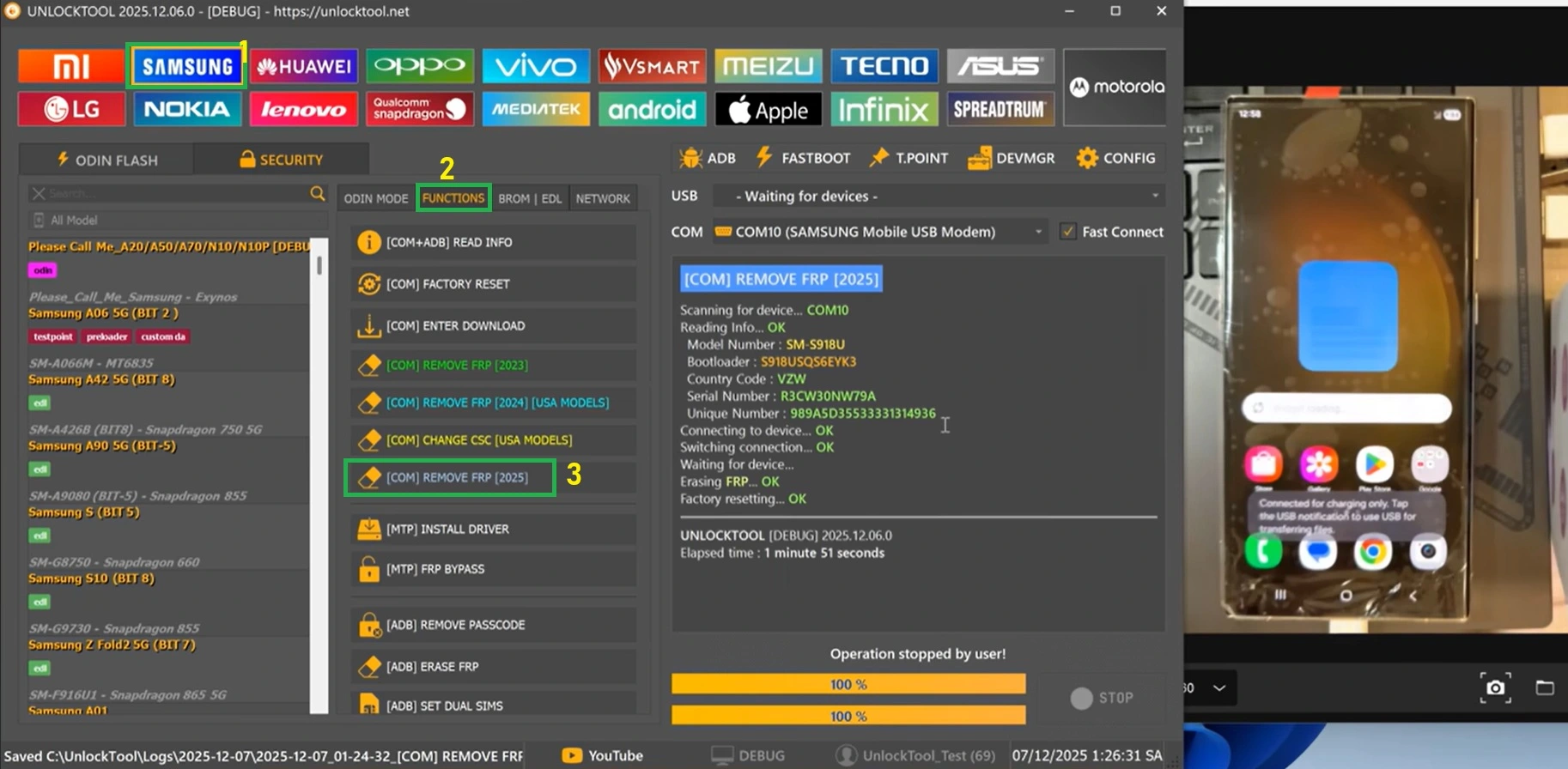
Unlock Tool showing the completed [COM] Remove FRP [2025] process on a Samsung Android 16 device
Important Notes
to Keep in Mind
A few small mistakes can throw off the whole process. Keep these points in mind while you remove Samsung FRP on your Android 16 device so the COM MTP function has the best chance of finishing cleanly on the first try.
Ensure the Device Remains Connected During the Process
Don’t unplug the USB cable or let the device disconnect while the tool is working. Interrupting the connection mid-process can leave the phone in an unstable state and force you to restart the entire procedure from scratch.
Verify That the Internet Connection Is Stable
Both your PC and the Samsung device should stay connected to a reliable network throughout. A dropped connection during the FRP removal can cause the tool to hang or return an incomplete result.
Follow the On-Screen Instructions Carefully
Read every prompt from both the Unlock Tool and the device itself before clicking through. Rushing past a step or dismissing a dialog too quickly is one of the most common reasons the process needs to be repeated. If something goes wrong anyway, our Samsung FRP Troubleshooting Guide covers the most common sticking points.
Frequently Asked
Questions
Still have questions about how to remove Samsung FRP on Android 16 devices? Here are answers to the most common questions readers ask about the COM MTP function and the overall unlock process.
What is the COM MTP FRP feature in Unlock Tool?
It’s a function inside the Unlock Tool that communicates with a Samsung device through a virtual COM port while the phone sits in MTP mode. This connection method lets the tool bypass the FRP screen without relying on Download Mode or a full firmware flash.
Does this method support Samsung Android 16 devices?
Yes, the COM MTP FRP function is built specifically to handle newer Samsung firmware, including Android 16. Keep the Unlock Tool updated, since supported models and firmware versions get added regularly.
Do I need a Wi-Fi connection before removing FRP?
Yes. Connecting the device to Wi-Fi before starting keeps communication active between the phone and the tool. Skipping this step can cause the process to stall partway through.
Will this process erase my personal data?
In most cases the device reboots as part of the process, which can reset certain settings. Back up anything important beforehand, since results can vary slightly depending on the model and firmware.
Can I remove Samsung FRP without a PC using this method?
No, this particular method requires a Windows PC running the Unlock Tool. The COM MTP connection depends on the desktop software to send commands to the device over USB.
Why is Unlock Tool not detecting my Samsung device?
This usually comes down to missing or outdated USB drivers, a faulty cable, or a USB hub interfering with the connection. Reinstall the Samsung drivers, use a direct rear USB port, and try a different cable if the issue continues. See Common Unlock Tool Errors and Fixes for more detection issues.
What should I do if the COM MTP option is unavailable?
Update the Unlock Tool to the latest version first, since older builds may not list this option for newer models. If it still doesn’t appear, double check that your device model and firmware are on the supported list.
Is Unlock Tool compatible with the latest Samsung security updates?
The developers regularly push updates to keep pace with Samsung’s security patches. Running the newest version of the tool gives you the best chance of compatibility with the latest firmware. Check the Unlock Tool Latest Features (2026) page for the current changelog.
Can I use this method on all Samsung Galaxy models?
Not every model is supported through the COM MTP function. Check the Unlock Tool Supported Samsung Models list before starting, since chipset and firmware differences affect compatibility across the Galaxy lineup.
How long does the FRP removal process usually take?
Most devices finish within a few minutes once the COM MTP function starts running. Slower PCs, weaker USB connections, or unstable internet can stretch that time out a bit longer.
Wrapping Up
the FRP Removal Process
Getting locked out of your own Samsung phone is a headache, but it doesn’t have to stay that way. With the right setup and a bit of patience, the COM MTP function makes it possible to remove Samsung FRP on Android 16 devices without a full firmware flash.
Summary of the Process
- Prep your PC and device with the right drivers and a stable connection
- Launch Unlock Tool and connect the device over USB and Wi-Fi
- Run the [COM] Remove FRP [2025] function from the Samsung tab
- Let the tool finish and complete setup manually once it reboots
Final Recommendations
Always confirm you’re the legitimate owner of the device, keep the tool updated, and don’t rush through the on-screen prompts. A stable connection and a little patience make the difference between a clean unlock and a process you have to repeat.
Ready to get your device back to normal? Grab the latest Remove FRP Lock Unlock Tool and follow the steps above to clear the lock screen for good.
Legal
Disclaimer
Please Read Before Proceeding
This guide on how to remove Samsung FRP on Android 16 devices is intended solely for educational purposes and professional mobile repair use. Only perform FRP removal or device unlocking on devices you legally own or are explicitly authorized to service. Unlocking procedures may erase user data or affect device functionality if performed incorrectly, so proceed carefully and follow every step as described.
The author and this website accept no responsibility for any damage, data loss, security issues, or misuse resulting from the information provided in this guide. Always back up important data before performing any operation, and make sure you comply with all applicable local laws and manufacturer policies when using unlocking tools such as the Remove FRP Lock Unlock Tool.