What Is the libusb Win32 Driver
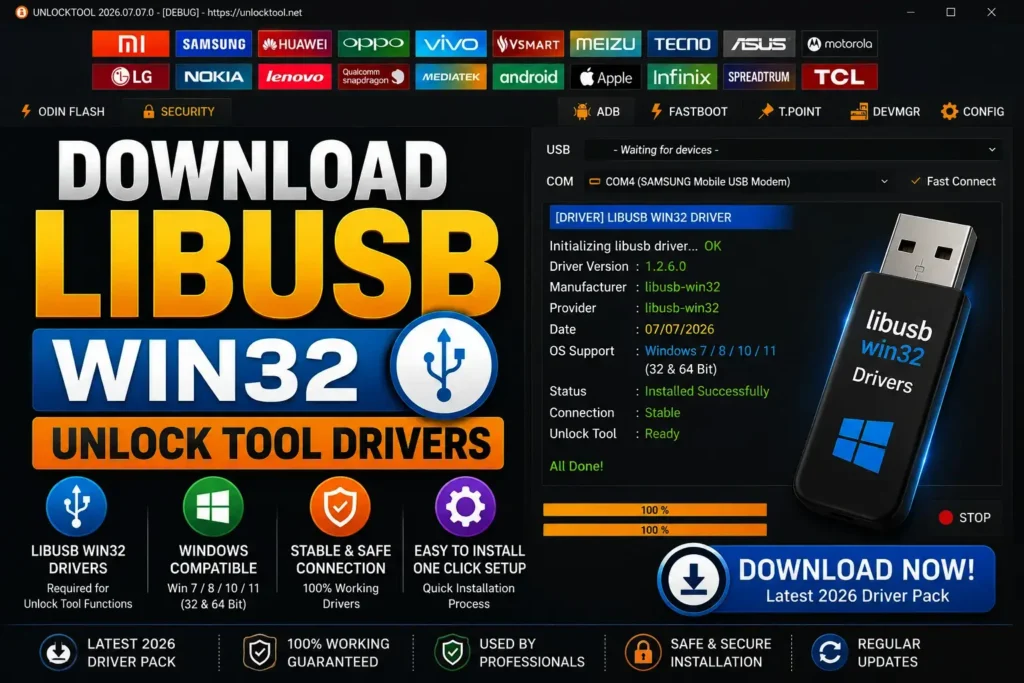
libusb-win32 is a filter driver that controls USB communication between the PC and the phone. A normal driver just recognizes the phone, but this filter driver lets Unlock Tool talk to the phone at a deeper level, especially in MTK BROM mode. Put simply, without libusb-win32 your MTK phone will connect in BROM mode, but the tool won’t be able to get any work done with it. That’s why this small driver is so important.
Why Unlock Tool Needs It (BROM mode communication)
When Unlock Tool catches an MTK phone in BROM mode, it has to talk directly to the phone’s system. Windows’ regular USB driver doesn’t give that deep access, so the libusb filter sits in the middle and gives the tool full access. Without this filter, the tool will see the phone but won’t be able to do jobs like FRP removal, flashing, or unlocking. That’s why this driver is a must for BROM mode communication.
Download libusb Win32 Drivers (Free)
The libusb Win32 drivers download link is at the top of this post. It’s a completely free download, with no password and no survey. The package has both 64-bit and 32-bit versions, and it works on Windows 10 as well as Windows 7. Pick the right version for your system. The next H3 explains which one is for your PC.
64-bit vs 32-bit
The rule is simple: pick the version that matches your Windows. Right-click My Computer and open Properties, and under “System type” it will say whether your system is 64-bit or 32-bit. Install whichever one it says. Almost every PC these days is 64-bit, so most people will need the 64-bit one. Installing the wrong version won’t work, so checking first takes a minute and saves you the trouble.
How to Install libusb Drivers on Windows
Right-click the installer and run it with Run as administrator. The filter won’t install without admin rights, and that’s the most common mistake. Click Install libusb and wait a minute. It installs the same way on both Windows 10 and Windows 11. After the install, connect the phone in MTKClient or BROM mode. If the tool picks up the phone, the filter is installed properly.
Install for MTKClient / BROM Mode
To install the filter for MTKClient, first put the phone into BROM mode. This is usually done by holding the volume keys while you plug in the cable. When the phone shows up in Device Manager as “MediaTek USB Port,” select that same device in the filter installer and click Install. One thing to remember: the filter gets installed on whichever device is connected at that moment. If you plug in a different phone later, you’ll have to install the filter again for it.
Verify the Filter Is Active
Don’t forget to verify after the filter is installed. Open the filter installer again. The device with the filter should have a tick or say “installed” next to it. Or run MTKClient and connect the phone. If the tool picks it up right away, the filter is active. If the tool still doesn’t detect the phone, the filter was installed on the wrong device. Remove it from the wrong one in the installer and install it again on the right device.
Fix Common libusb Problems
Problems with libusb are common, but most of them have a simple fix. If you’re getting a “libusb not working” complaint, first check whether the filter is installed on the right device. A filter on the wrong device is the most common cause. The second cause is installing it without admin rights. Sometimes the filter clashes with another tool’s driver. In that case, it’s better to remove libusb and install it again. The next H3 covers both problems in detail, and you’ll find the full libusb fix there.
Advertisement
“libusb driver is not installed” Error
This error shows up when the tool tries to catch the phone in BROM mode but the filter isn’t there. The fix: run the filter installer as administrator, connect the phone in BROM mode, select the device, and click Install. Another cause: sometimes a Windows update breaks the old filter. In that case, remove the filter and install a fresh one, and the problem will be solved.
How to Remove / Uninstall libusb Filter
To remove the filter, open the installer again, select the device the filter is installed on, and click “Remove.” The filter comes off right away, and the device goes back to its original driver. You need this when the filter clashes with another tool’s driver, or when problems start after a Windows update. Don’t worry, removing the filter doesn’t harm the phone, and you can install it again whenever you need to.
FAQ:
How do I install the libusb win32 driver?
Run the installer as administrator, put the phone in BROM mode, select the device, and click Install. That’s it.
How do I install libusb on Windows 11?
It’s the same steps as on Windows 10, no difference. Run the installer with admin rights and install the filter.
What is the latest version of libusb?
The version in this package is the latest tested one. Don’t chase a different version, just use the one in the package.
Advertisement
How to remove libusb in win32?
Open the installer again, select the device, and click Remove. The filter comes off and the phone isn’t harmed.
Is there a free download for Unlock Tool for PC?
The libusb driver is completely free. To actually run Unlock Tool, you need an activation, and that isn’t free.